
People and roles
Everyone’s full record: details, reporting line, pay, holiday allowance, roles and tool access.
Superadmins
Finding someone
Press Admin, then People. Click anyone’s row to open their record.
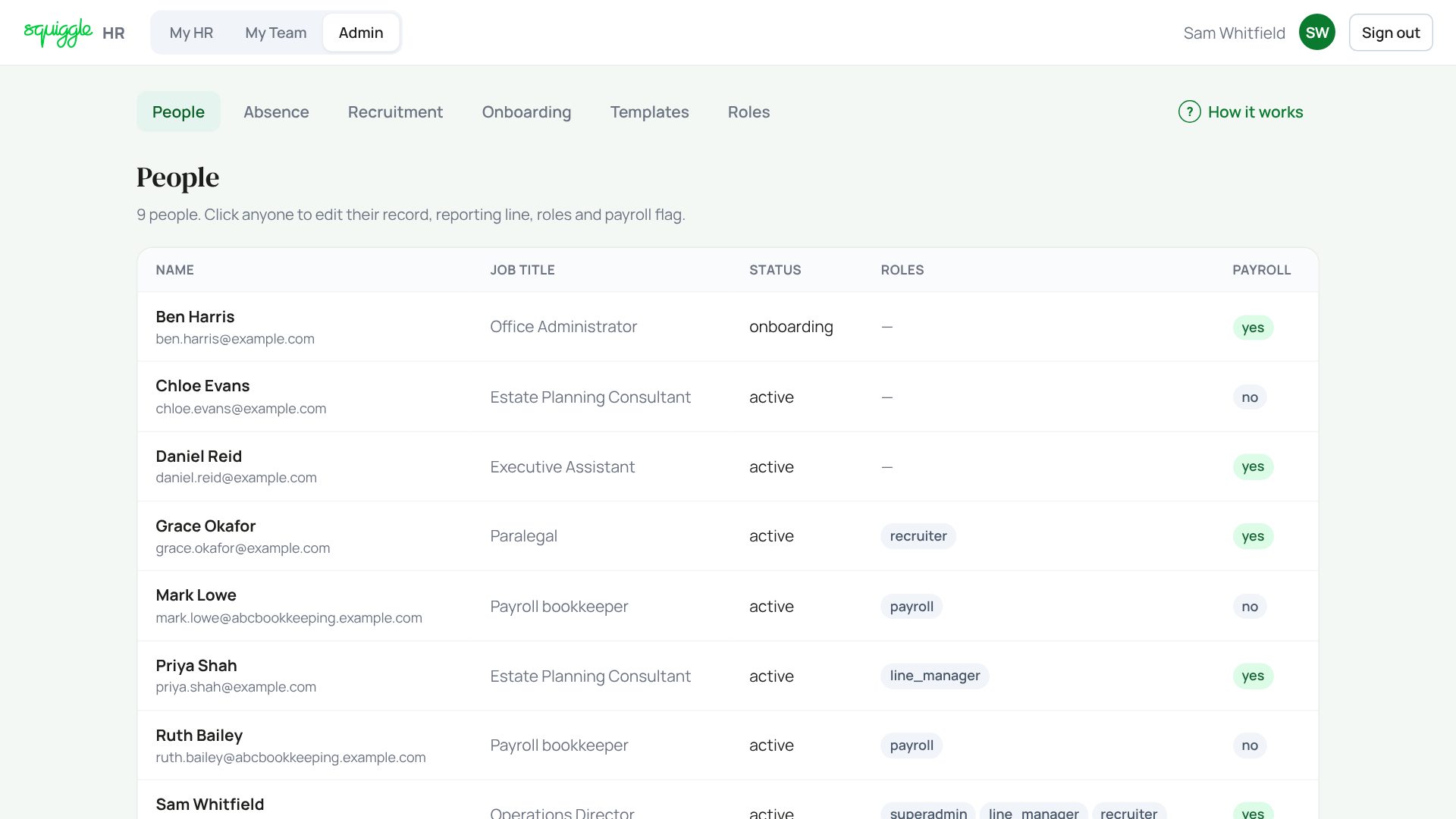
Their record
The record is in boxes. Change what you need, then press Save changes at the very bottom. One button saves the whole record, including System access.
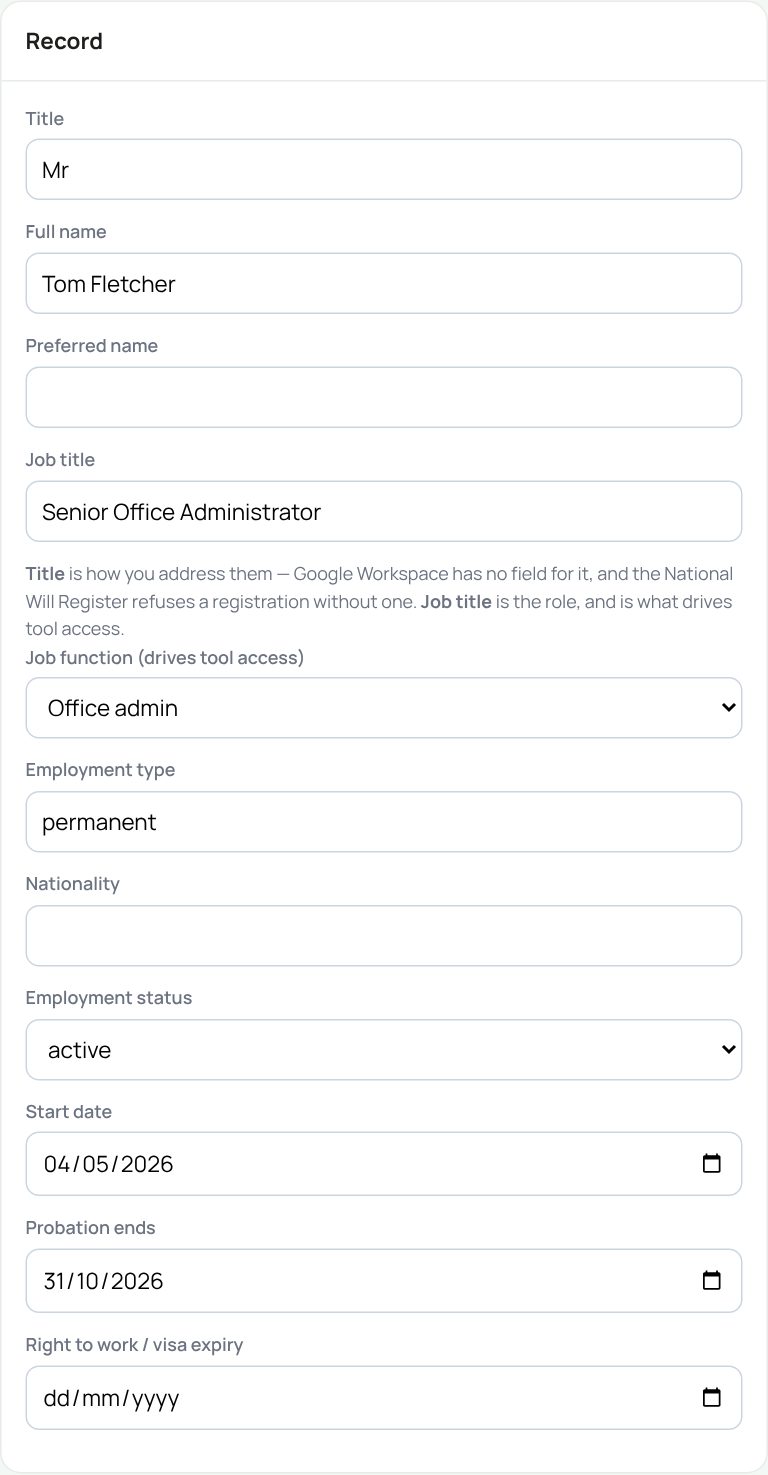
- Job function decides which Squiggle tools someone can use. With none set they get no tool access. Choosing Director also ticks Superadmin.
- Probation ends and Right to work / visa expiry drive the reminders managers see.
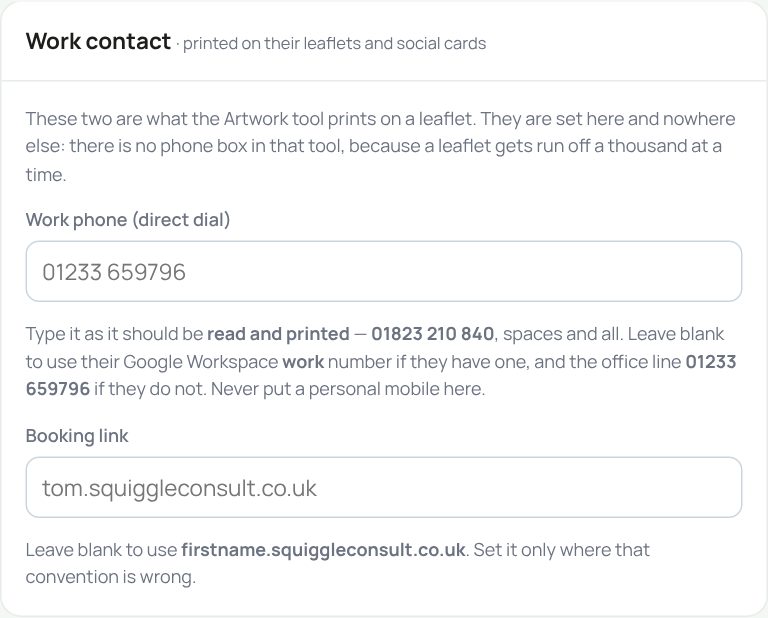
Type the work phone exactly as it should be printed. The booking link is not typed: it is their Signpost page, meet.squiggleconsult.co.uk/with/firstname, made from their email address.
Line manager, payroll and roles
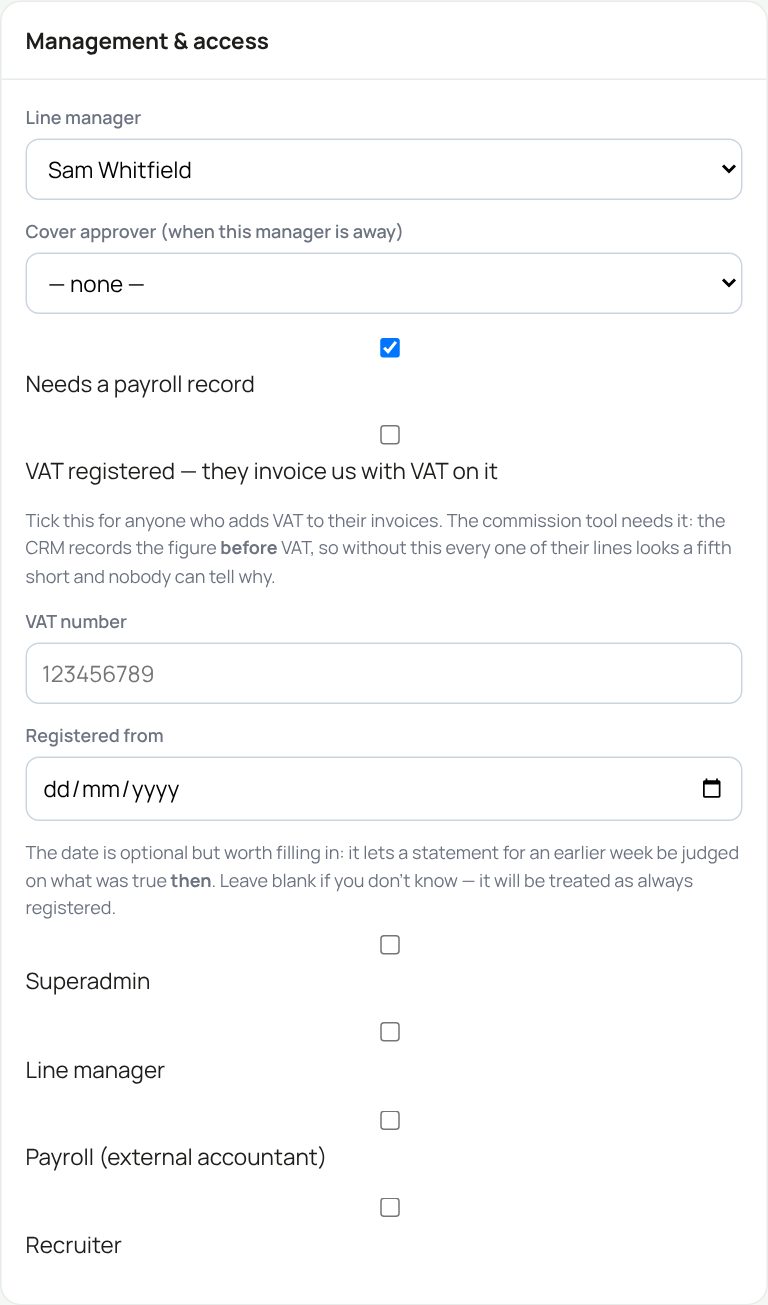
- Line manager: who approves their time off. If you pick someone who is not yet a line manager, you are asked whether to make them one.
- Cover approver: set this on a manager’s record. That person can then approve the manager’s team while they are away.
- Needs a payroll record: puts them on the payroll register.
- VAT registered: for consultants who add VAT to their invoices. A VAT number needs the tick as well.
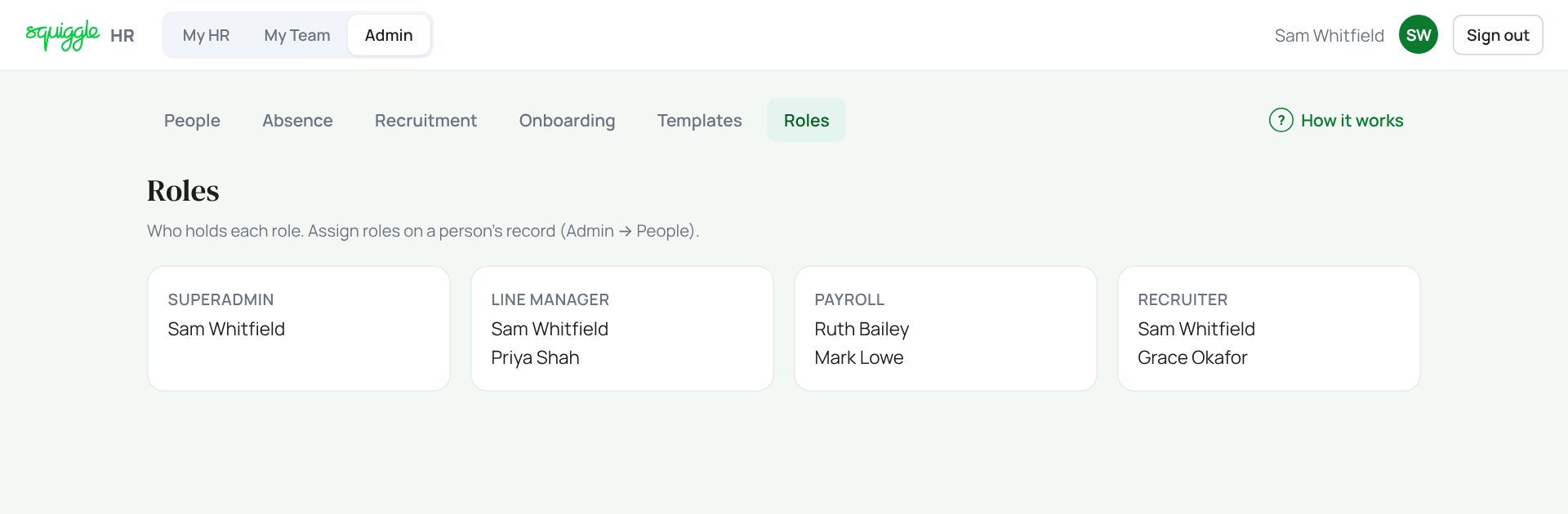
- Roles: Superadmin, Line manager, Payroll (the external bookkeeper), Recruiter.
System access
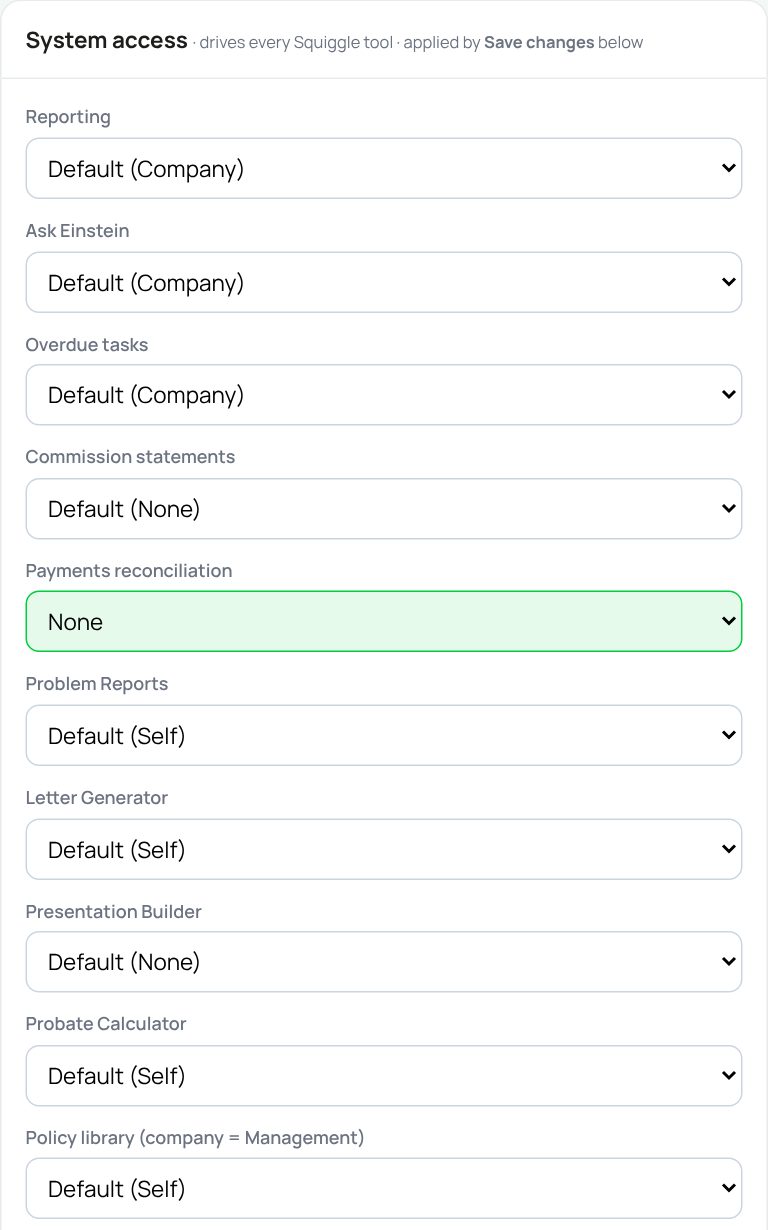
Each tool says Default plus what the job function gives them. Change one only for an exception: None, Self (their own records) or Company (everyone’s). Exceptions are highlighted green. After Save, changes reach every tool within about ten minutes.
Artwork images caps how many images they can generate in the Artwork tool each day or month.
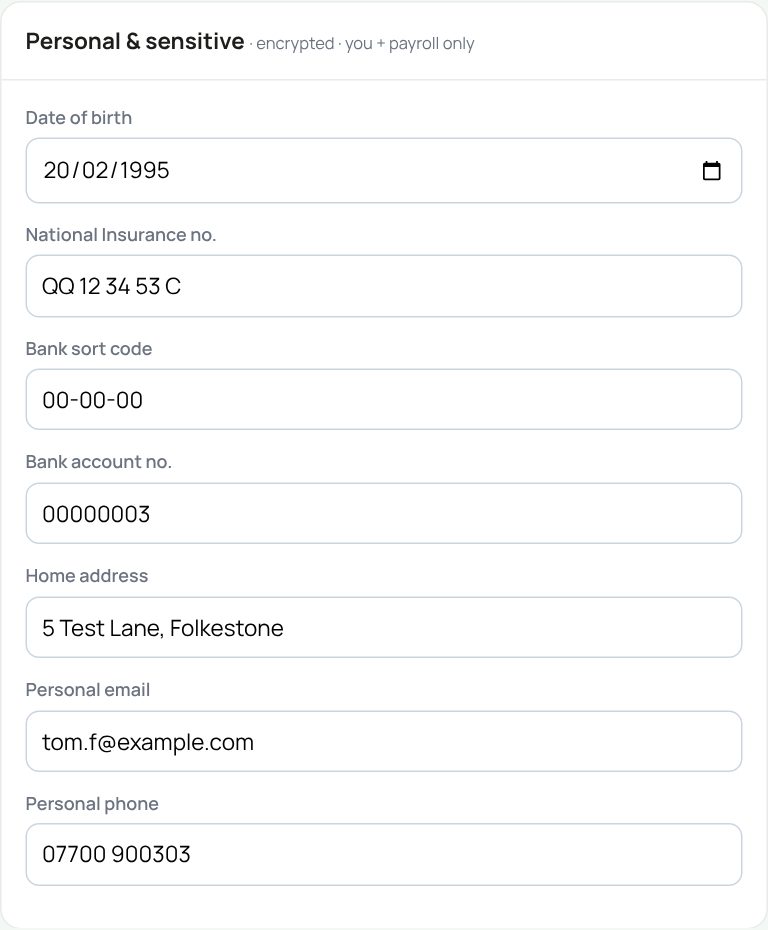
Pay, holiday and private details
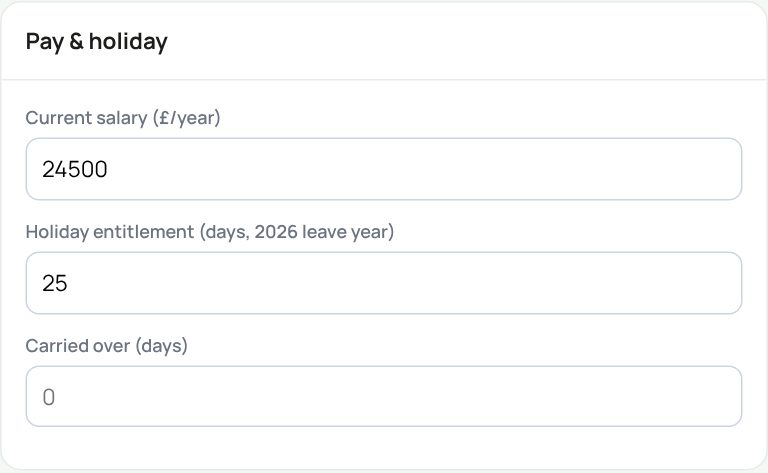
- Current salary: a change starts a new pay-history entry dated today.
- Holiday entitlement and Carried over: in days, for this leave year. Without an entitlement, managers see “no allowance”.
Saving


Under the save bar are the same Meetings & records, Notes & objectives, Documents and For signature boxes managers have. See My Team and Templates and e-signing.
The Roles page
Admin → Roles shows who holds each role. To change one, open the person’s record and tick or untick it.
If something goes wrong
The message beside Save changes tells you what happened. If it says Nothing was saved, fix the box it names and press Save again:
- Work phone: digits, spaces, brackets and hyphens only.
- VAT number: nine digits, and tick VAT registered too.
- “Record saved, but System access did NOT save”: the rest saved; report it with the message.
- A red box saying it could not read existing overrides: do not save from that record. Report it.
- “Saved — but … was not stored”: everything else saved; a database update is needed.
If the page says Something went wrong or a red Error: message appears, nothing has been saved. Reload the page and try once more. If it happens again, press Report a problem and copy the message into it.
Something here does not match what you see? Use the Report a problem button in the corner of the HR site and say which guide.