
Templates and e-signing
Write letters and contracts once, then send them to be signed online.
SuperadminsRecruiters (sending)
Step 1: write a template
- Press Admin, then Templates.
- Give it a name and a type (contract, letter, reference, policy or other).
- Write the text. Type {{name}} where the person’s name goes and {{date}} for today’s date.
- Press Save template.
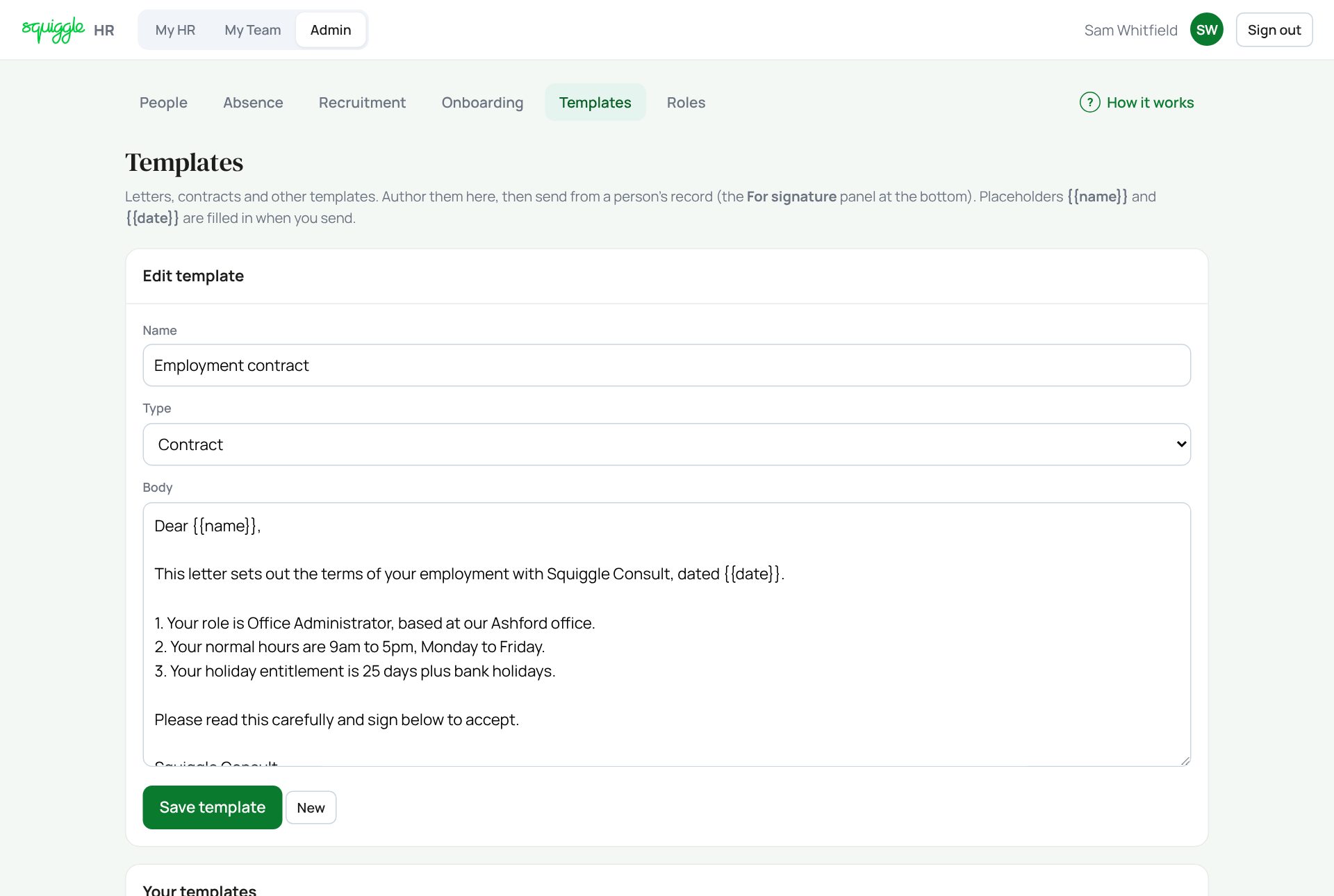
Press Edit on a saved template to change it, and New to start a fresh one. Delete asks first.
Step 2: send it to be signed
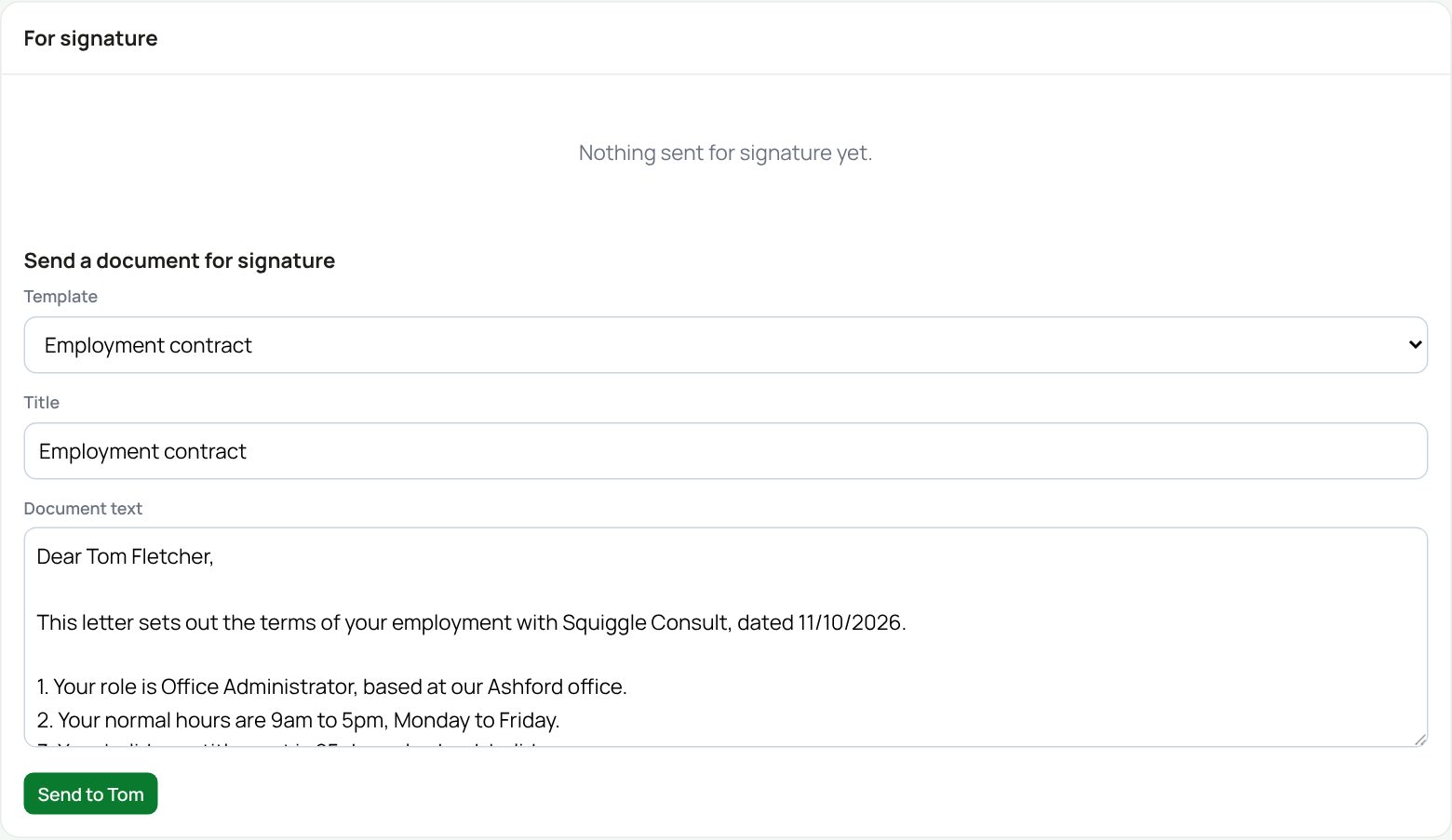
- Open the person’s record (Admin → People, or their page in My Team).
- Scroll to For signature at the bottom.
- Choose a template. The title and text fill in, with their name and today’s date. You can still edit the text.
- Press Send to ….
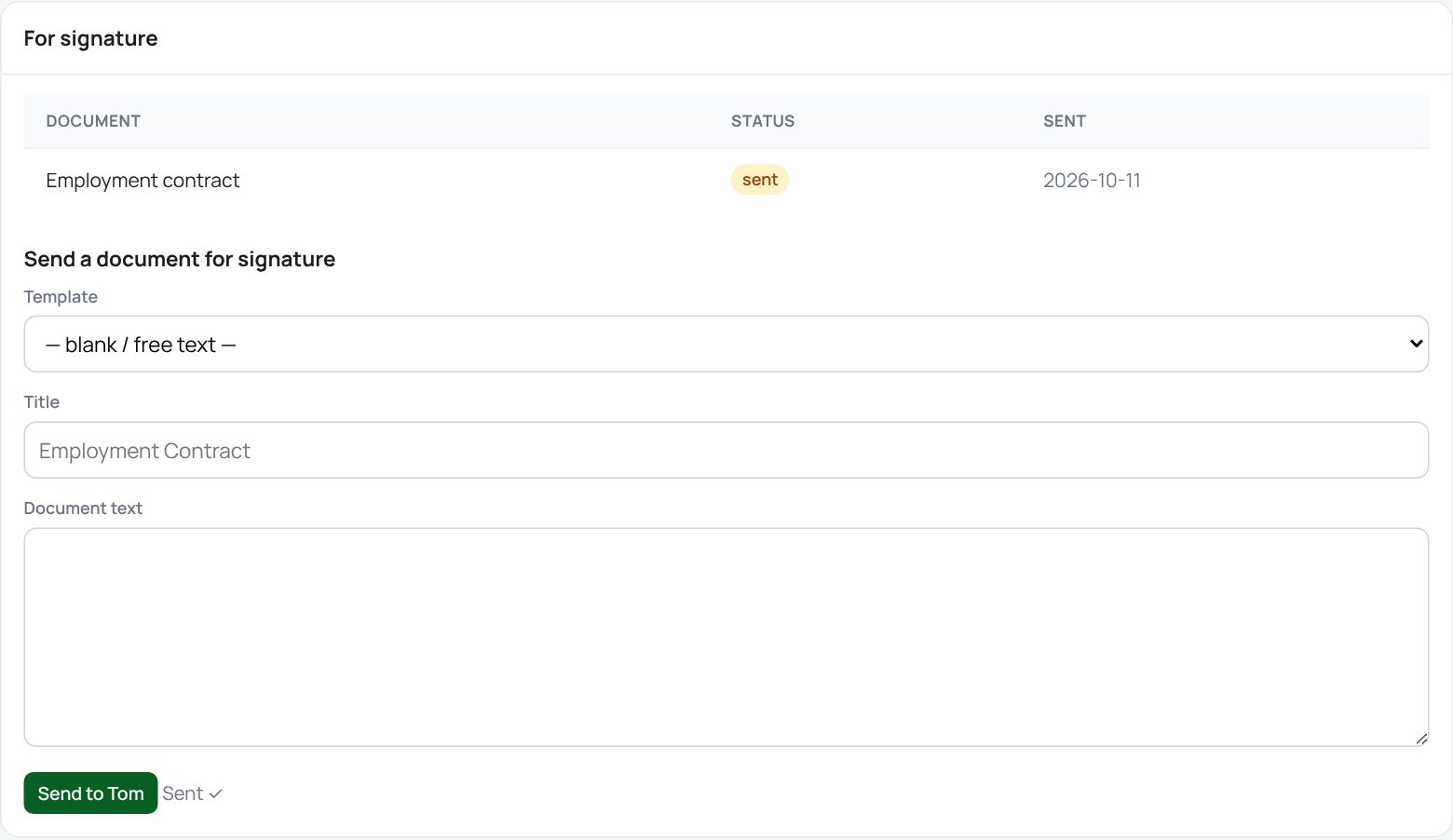
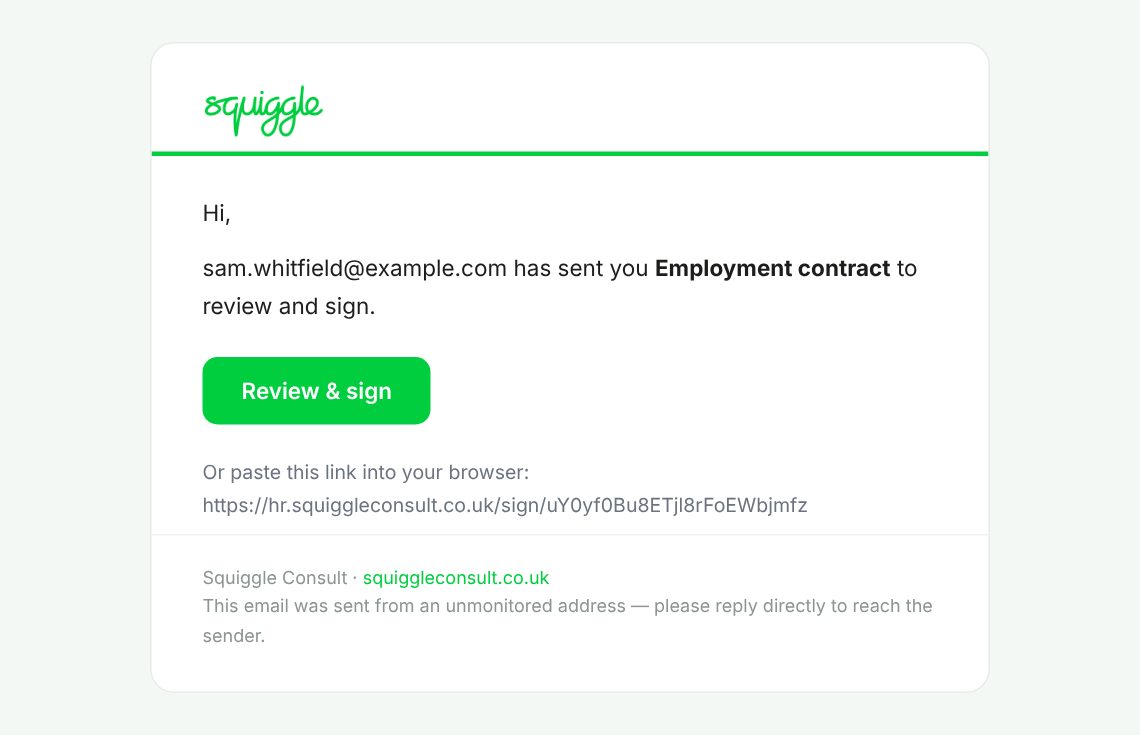
What the signer sees
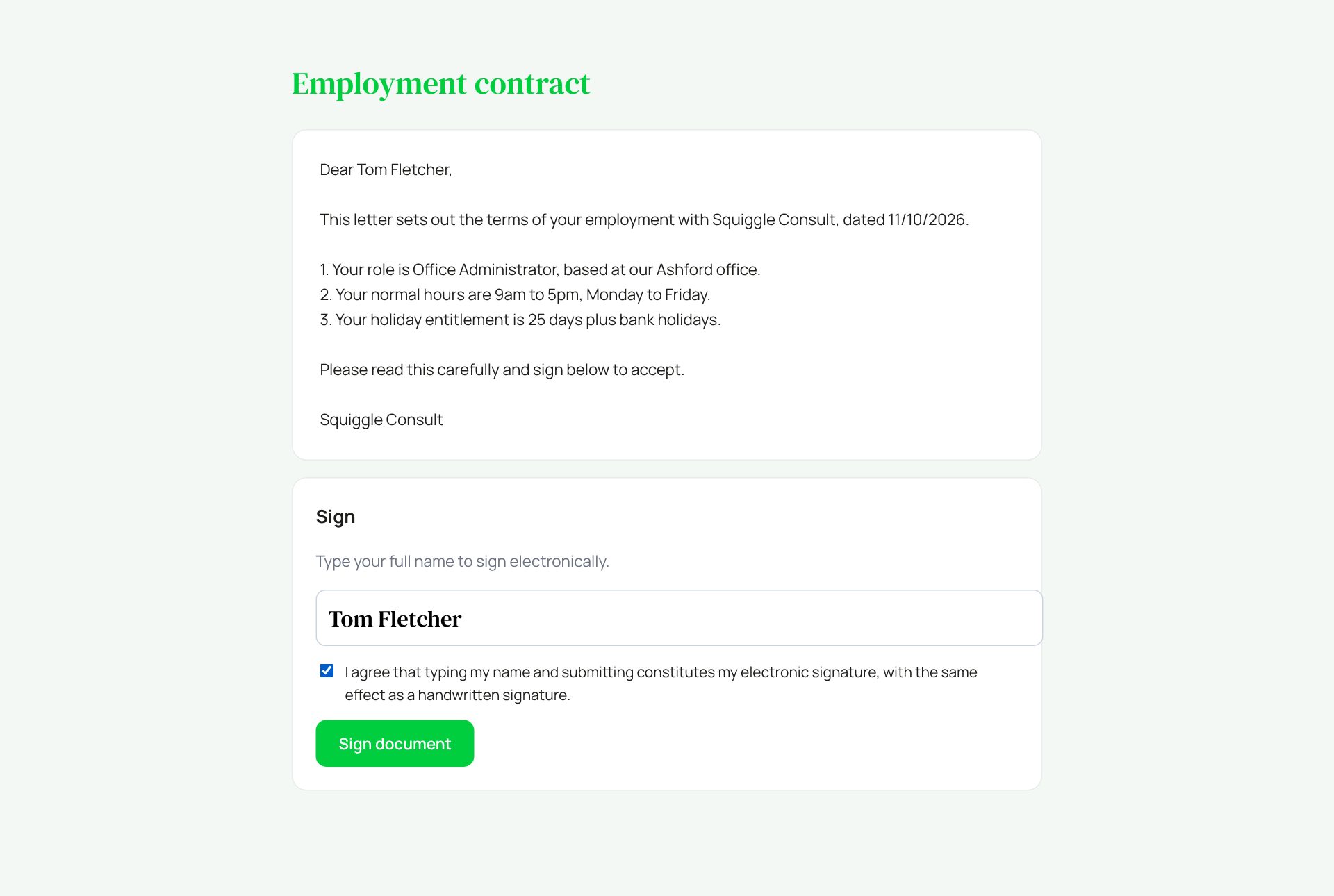
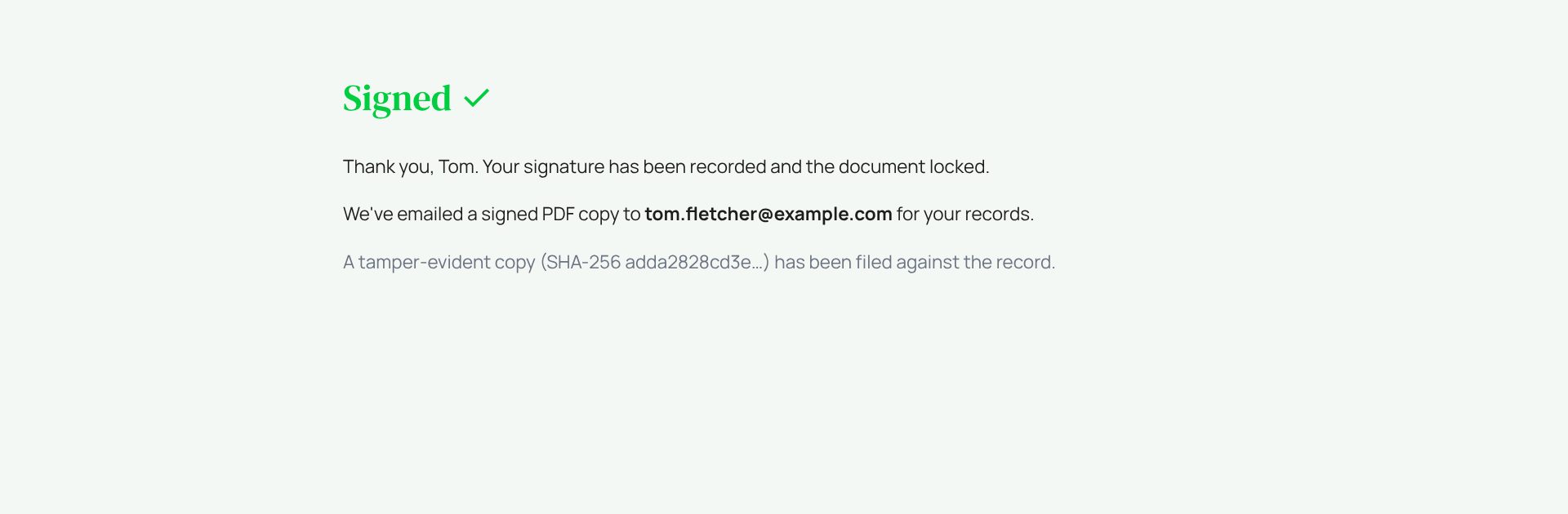
The signed PDF shows their typed name, the time and their internet address, and carries a tamper check. It is filed in their Documents, and the status changes to signed.
If something goes wrong
- “Saved, but the email failed to send”: the request exists but no email went. Report it.
- “This person has no email on file”: they cannot be sent anything until their record has an email.
- They say the link has expired: links last 30 days. Send it again.
- A typo in a sent document: you cannot edit it. Send a corrected one.
If the page says Something went wrong or a red Error: message appears, nothing has been saved. Reload the page and try once more. If it happens again, press Report a problem and copy the message into it.
Something here does not match what you see? Use the Report a problem button in the corner of the HR site and say which guide.