
Recruitment
Advertise a job, look at applicants, make an offer or say no kindly.
Superadmins
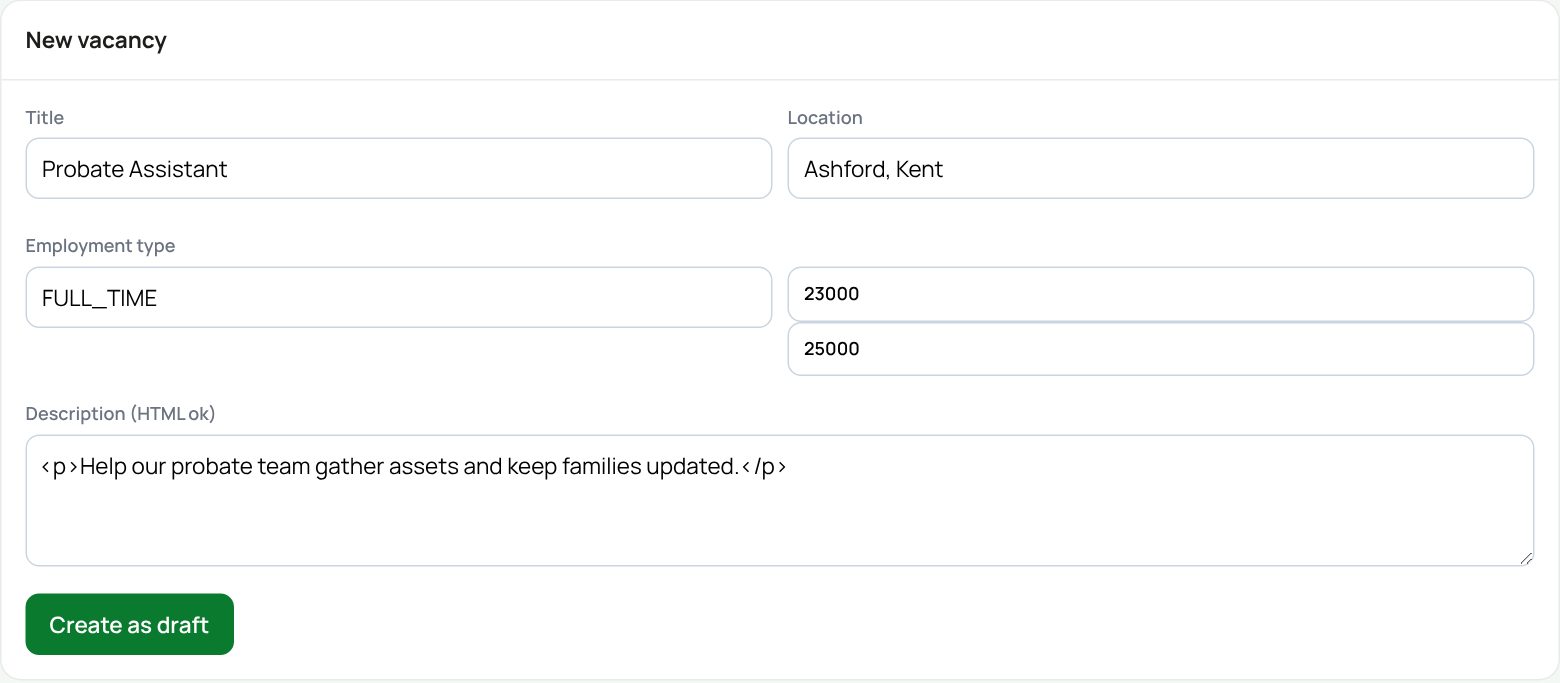
Step 1: create a vacancy
- Press Admin, then Recruitment.
- Under New vacancy, type the job title (you must), the location and the type of job (for example FULL_TIME or PART_TIME).
- Type the salary range in pounds, digits only.
- Write the description. You can use simple HTML such as <p> and <b>.
- Press Create as draft.
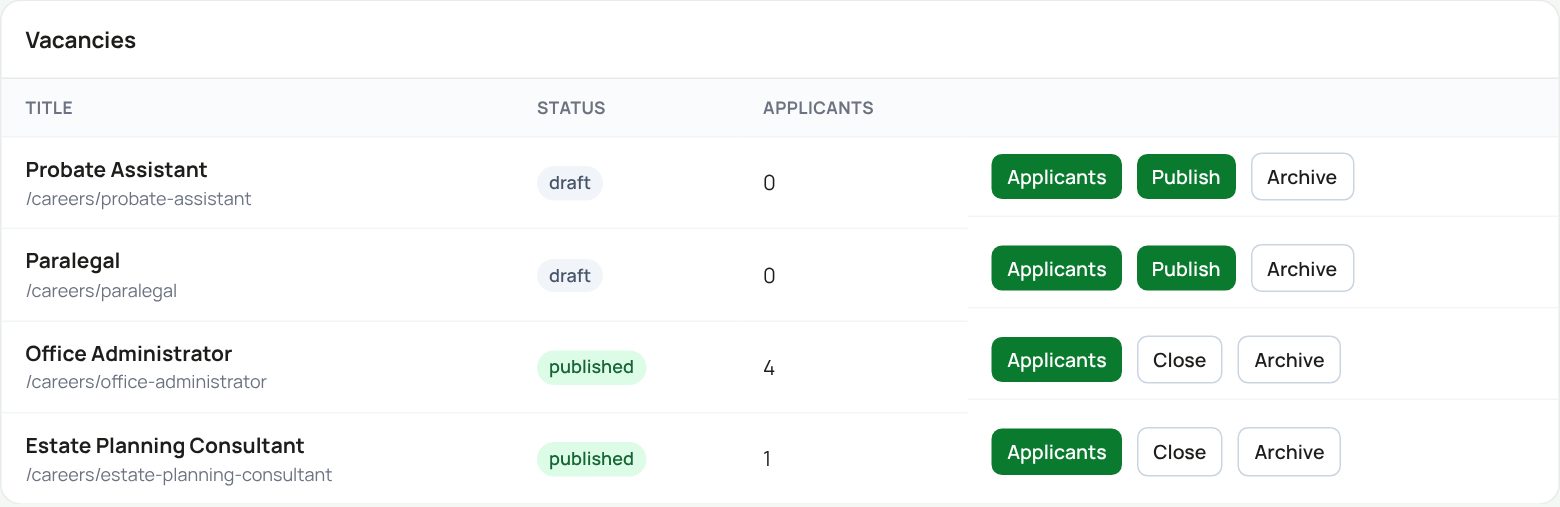
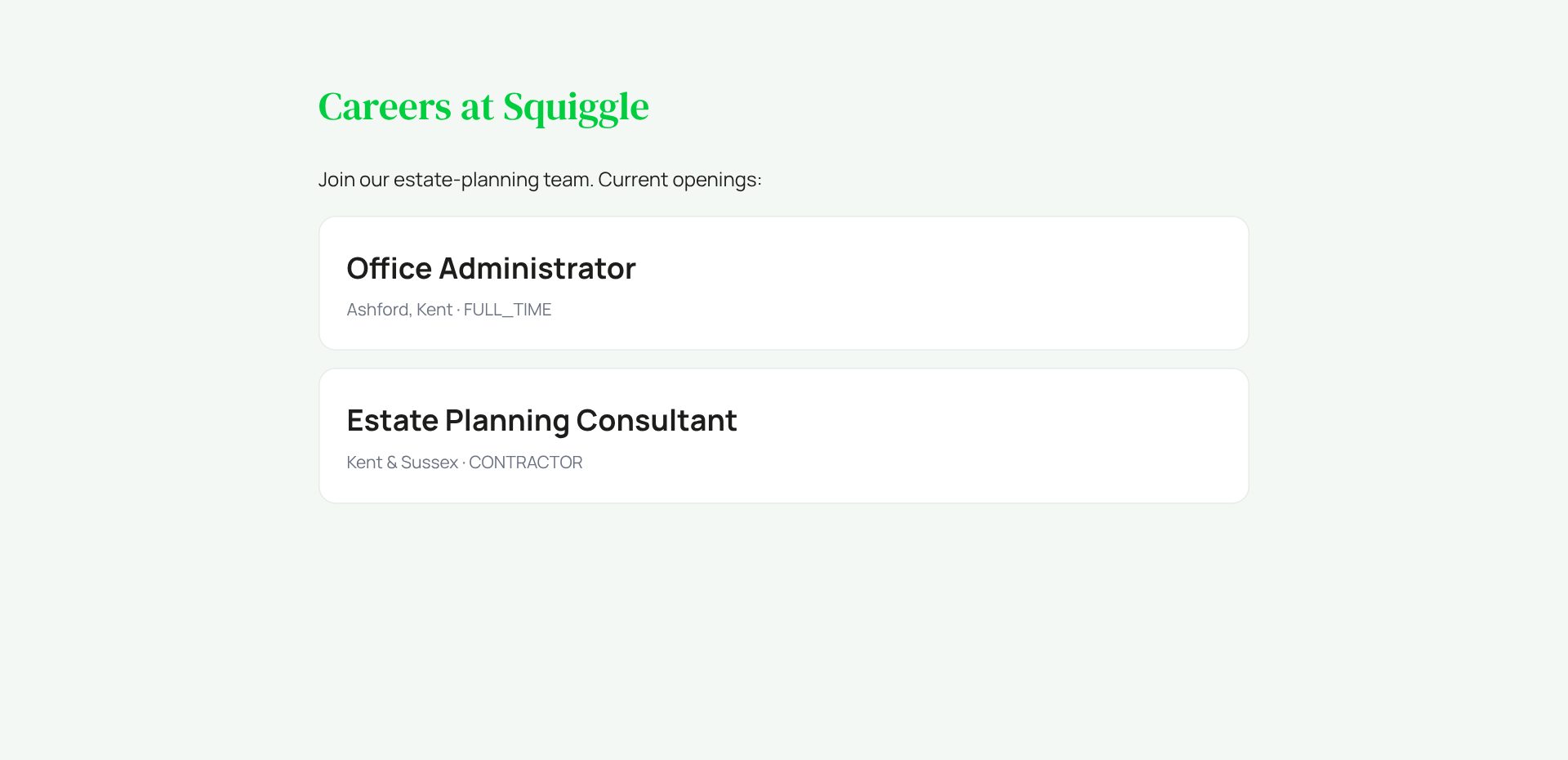
Press Publish to put it on the careers page at hr.squiggleconsult.co.uk/careers. Close takes it off. Archive tidies it away for good, once every applicant is hired, declined or in the talent pool.
What the candidate sees
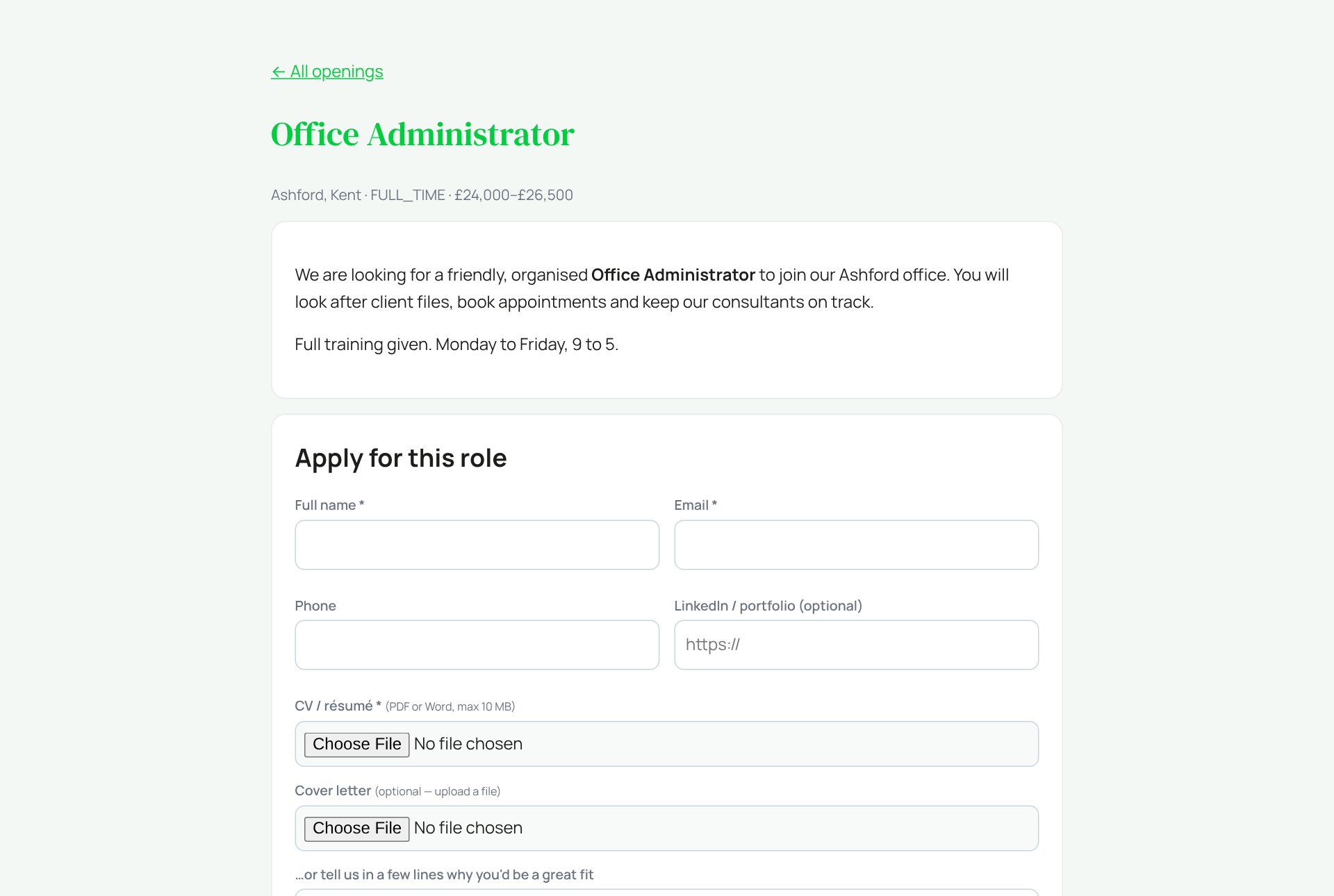
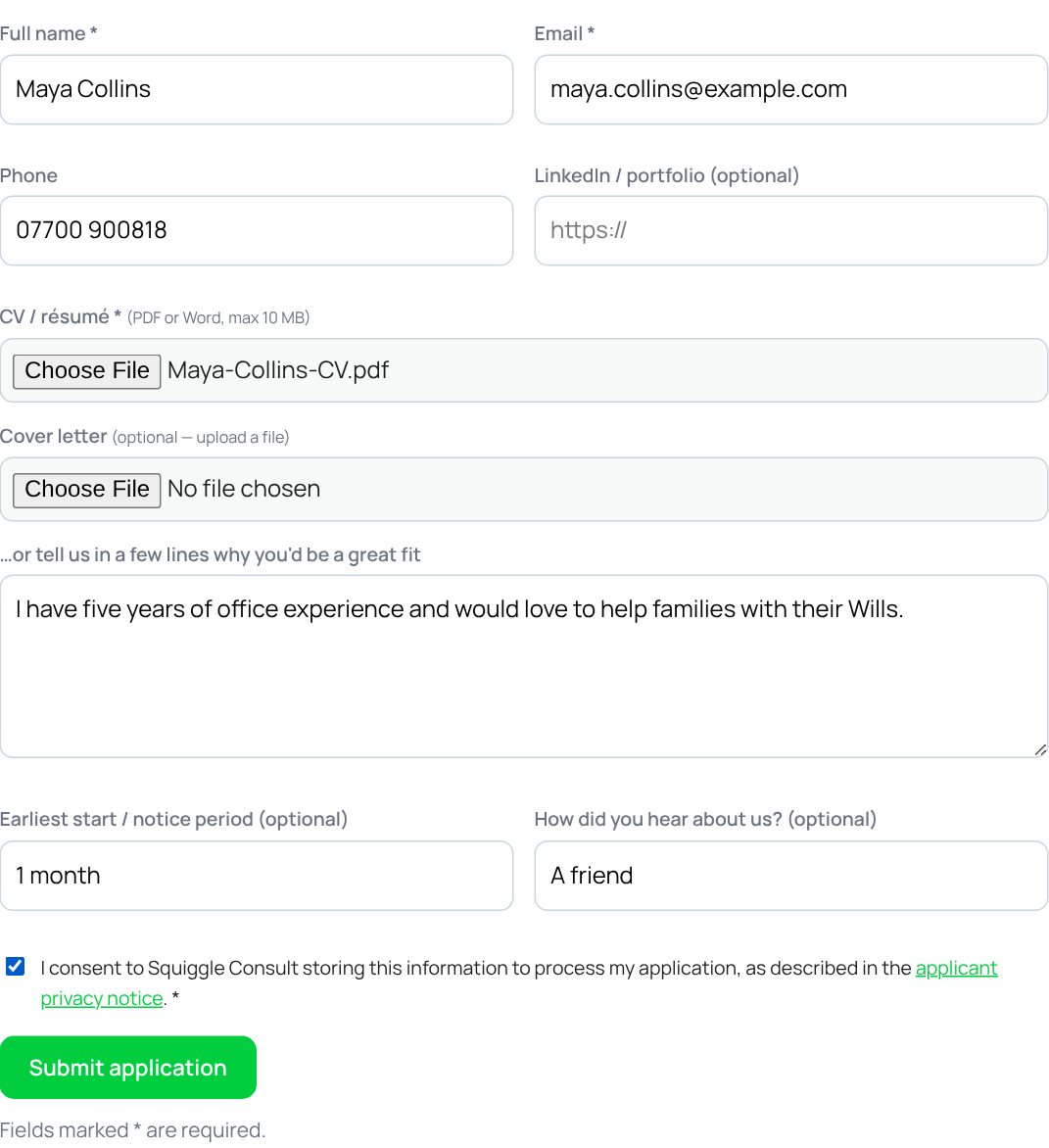
They give their name and email, upload a CV (PDF or Word, up to 10 MB), and can add a cover letter or a short note. They must tick the privacy consent box.
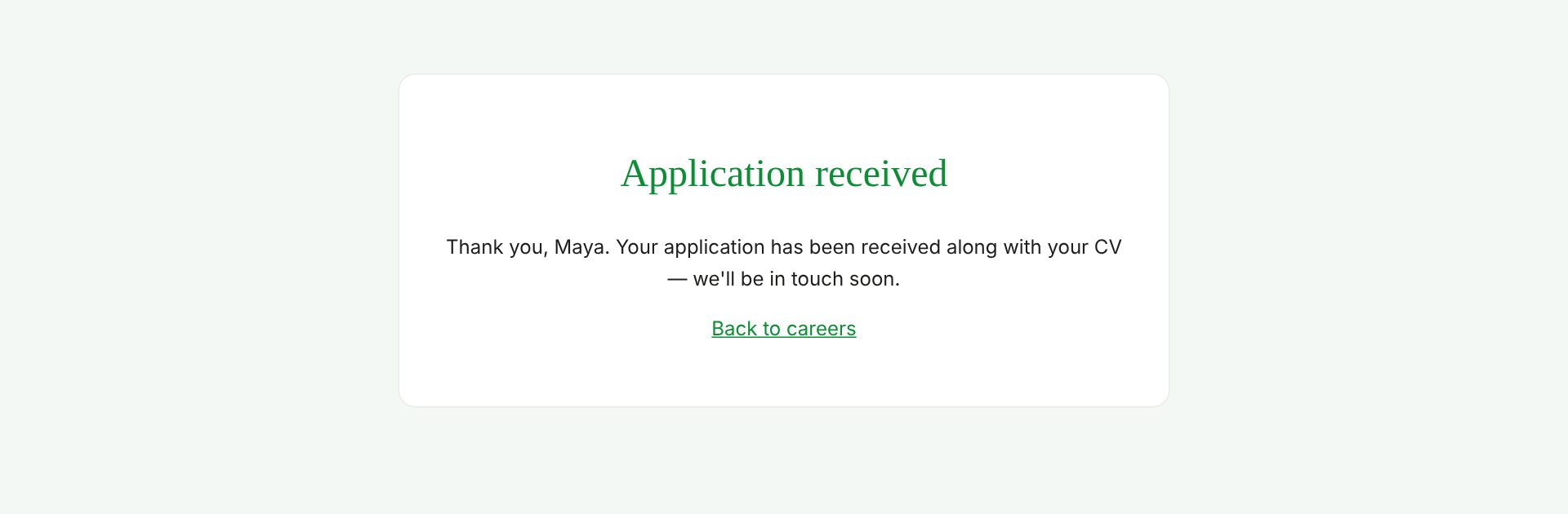
Each email address or connection can apply up to five times an hour.
Step 2: look at applicants
Press Applicants on a vacancy.
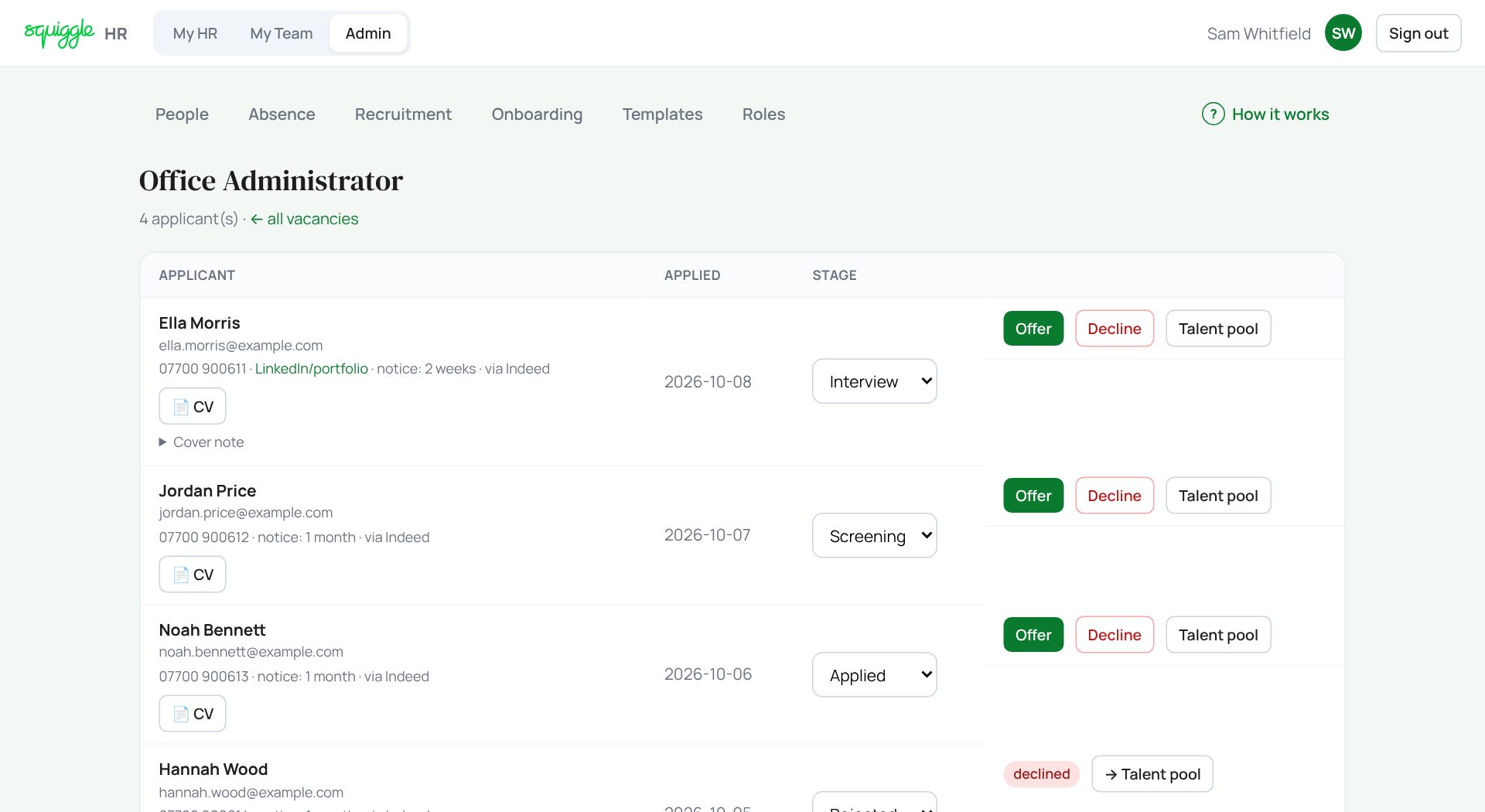
- Press CV or Cover letter to open them. Click Cover note to read a typed note.
- Move someone on by changing the Stage box. It saves straight away (“Stage updated.” appears at the bottom).
Step 3: make an offer
- Press Offer.
- A box asks for the salary per year. Type digits only, for example 24500.
- A second box asks for the start date as year-month-day, for example 2026-11-15.
- The offer email goes at once and their stage becomes Offer. “Offer sent.” appears at the bottom.
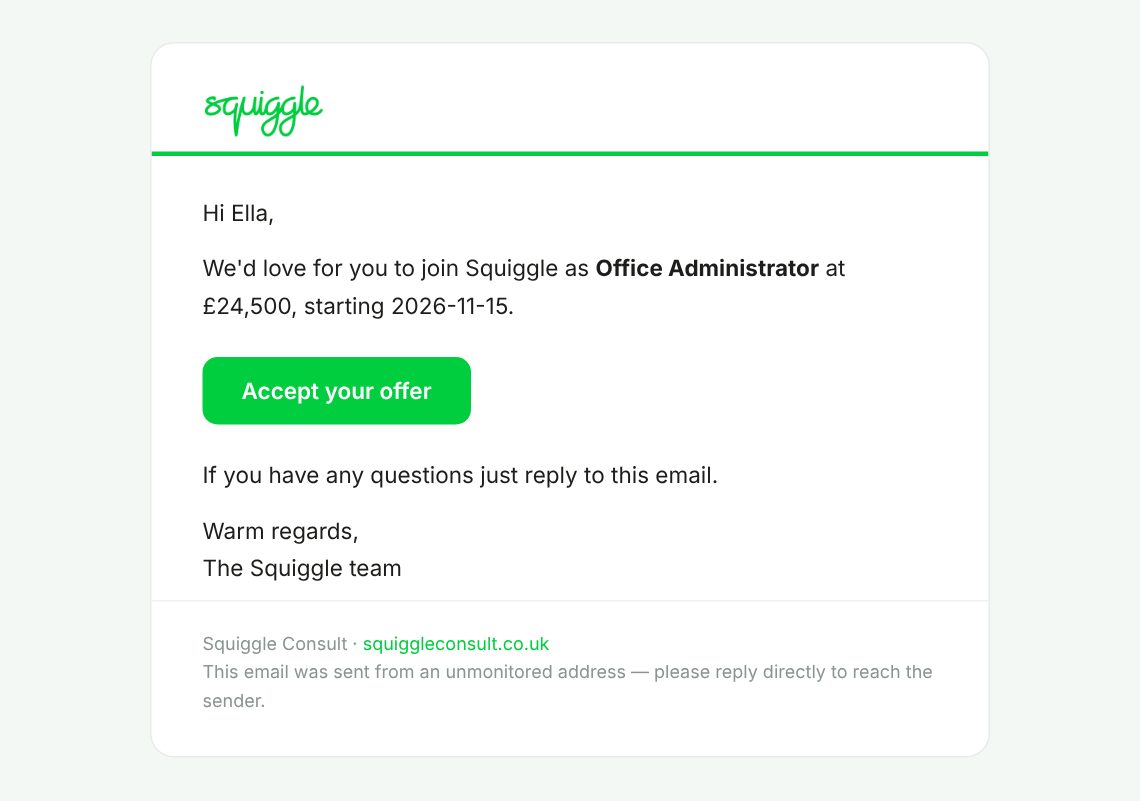
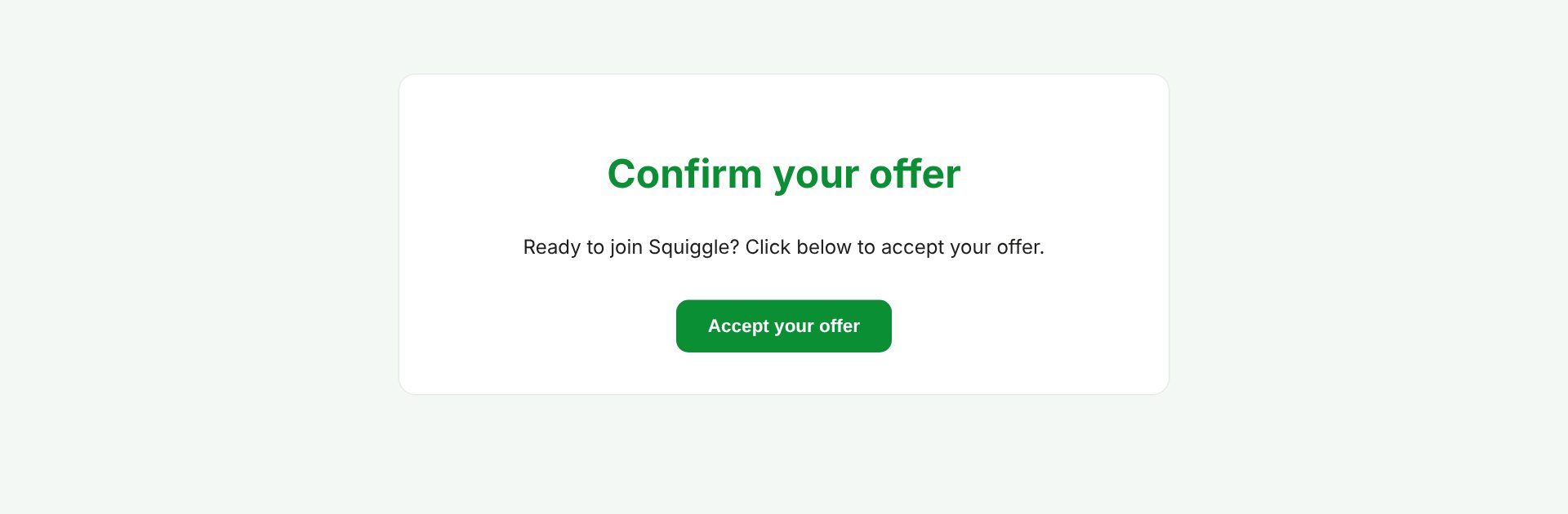
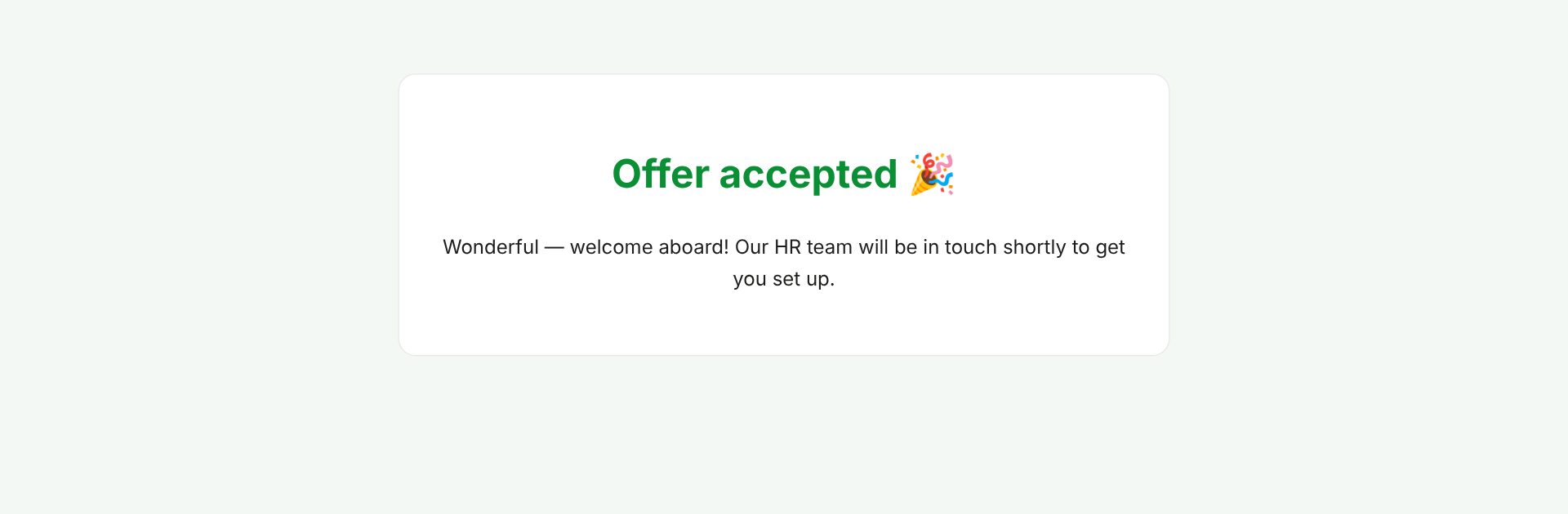
Check the salary and date before pressing OK. They go straight into the email, and there is no edit afterwards.
Saying no, or “not now”
- Decline: after one “are you sure?”, sends a polite no-thank-you email. This is final.
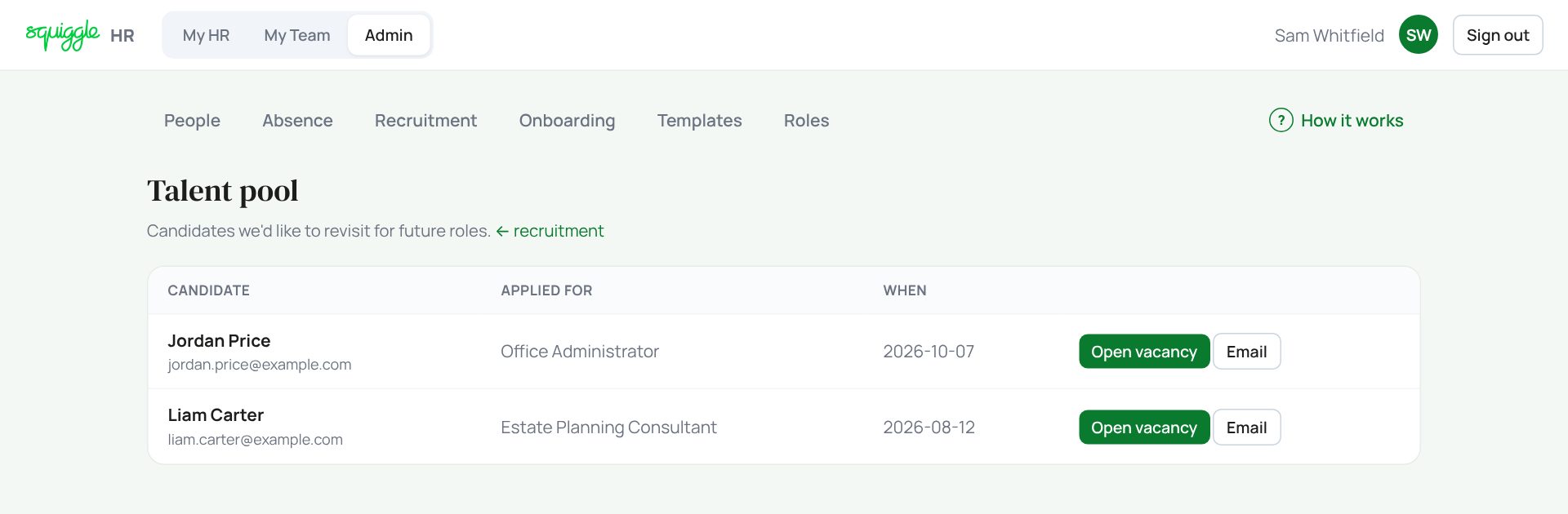
- Talent pool: sends a “we would like to keep in touch” email and keeps them on the Talent pool list.
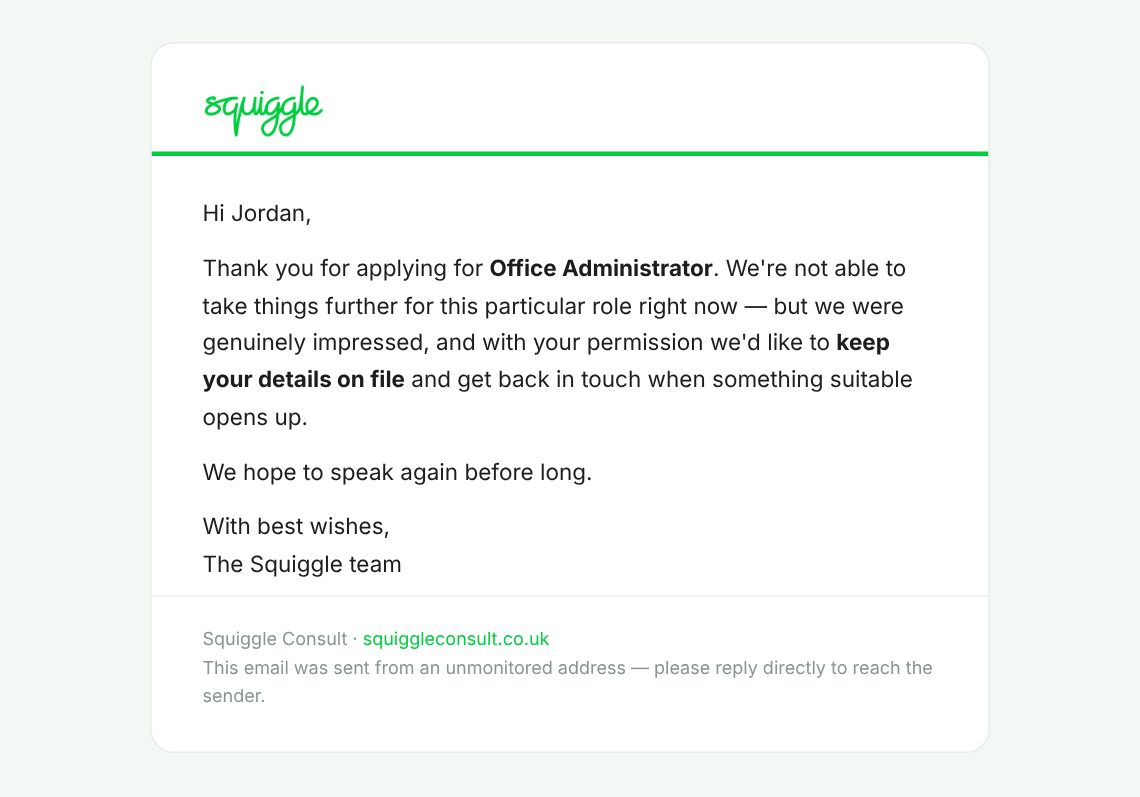
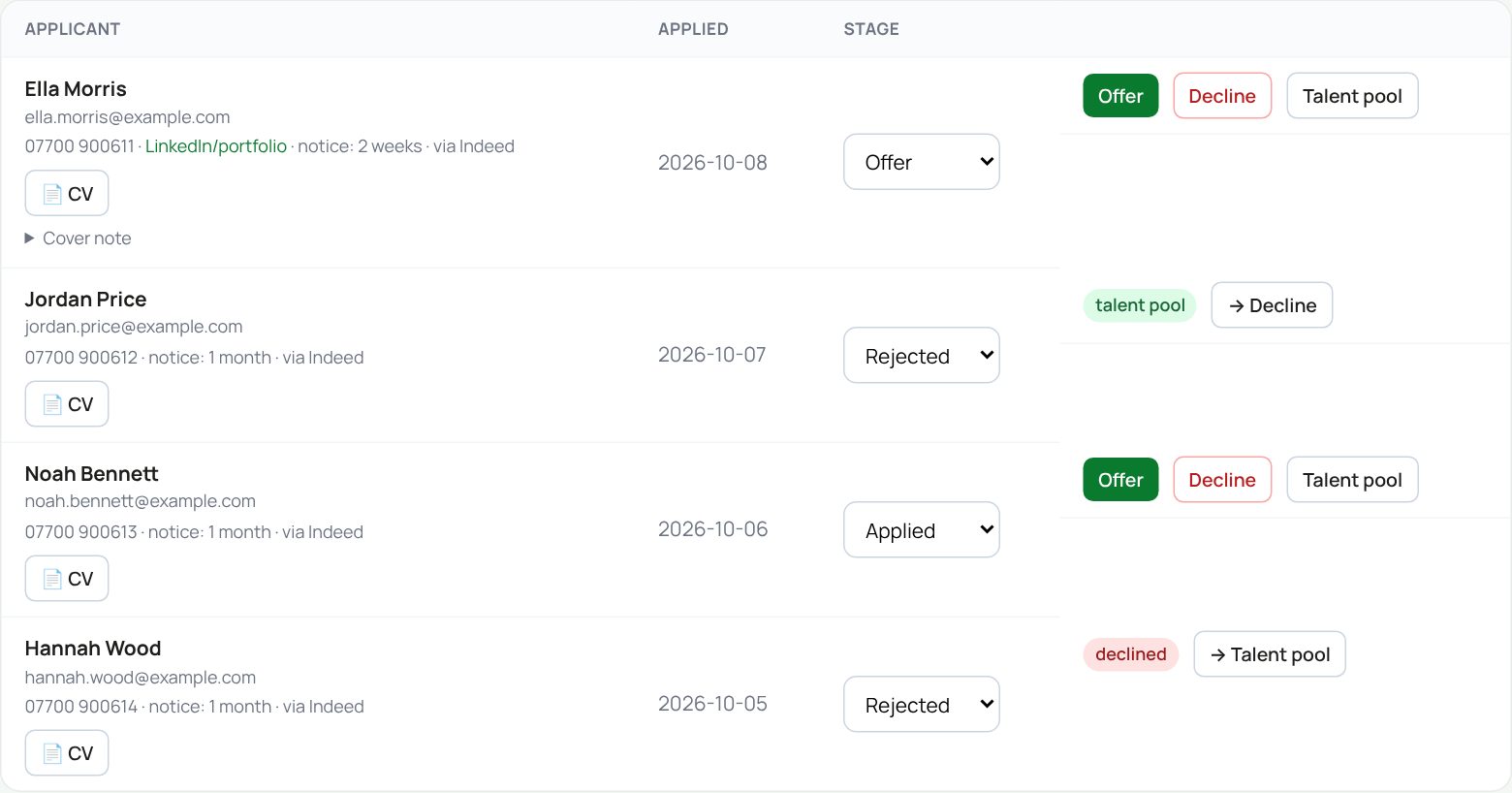
The small → Talent pool and → Decline buttons move someone between the two without sending another email.
If something goes wrong
- “No CV attached”: the file they sent was not a real PDF or Word file, or was too big. Email them for another copy.
- The offer email showed the wrong salary: email them yourself straight away; you cannot change a sent offer.
- Archive refused: someone on that vacancy is still open. Hire, decline or move them to the talent pool first.
- Applicants who were declined or put in the talent pool are deleted automatically, CV and all, 12 months after they applied. Someone in the talent pool you still want to keep in mind needs a note somewhere else after that.
If the page says Something went wrong or a red Error: message appears, nothing has been saved. Reload the page and try once more. If it happens again, press Report a problem and copy the message into it.
Something here does not match what you see? Use the Report a problem button in the corner of the HR site and say which guide.