
Payroll
For our payroll bookkeeper: the payroll register, and adding colleagues from your firm.
Payroll bookkeeper
Signing in
Go to hr.squiggleconsult.co.uk, type your work email and press Email link. Open the link we email you. You go straight to the Payroll register. See Signing in.
The payroll register
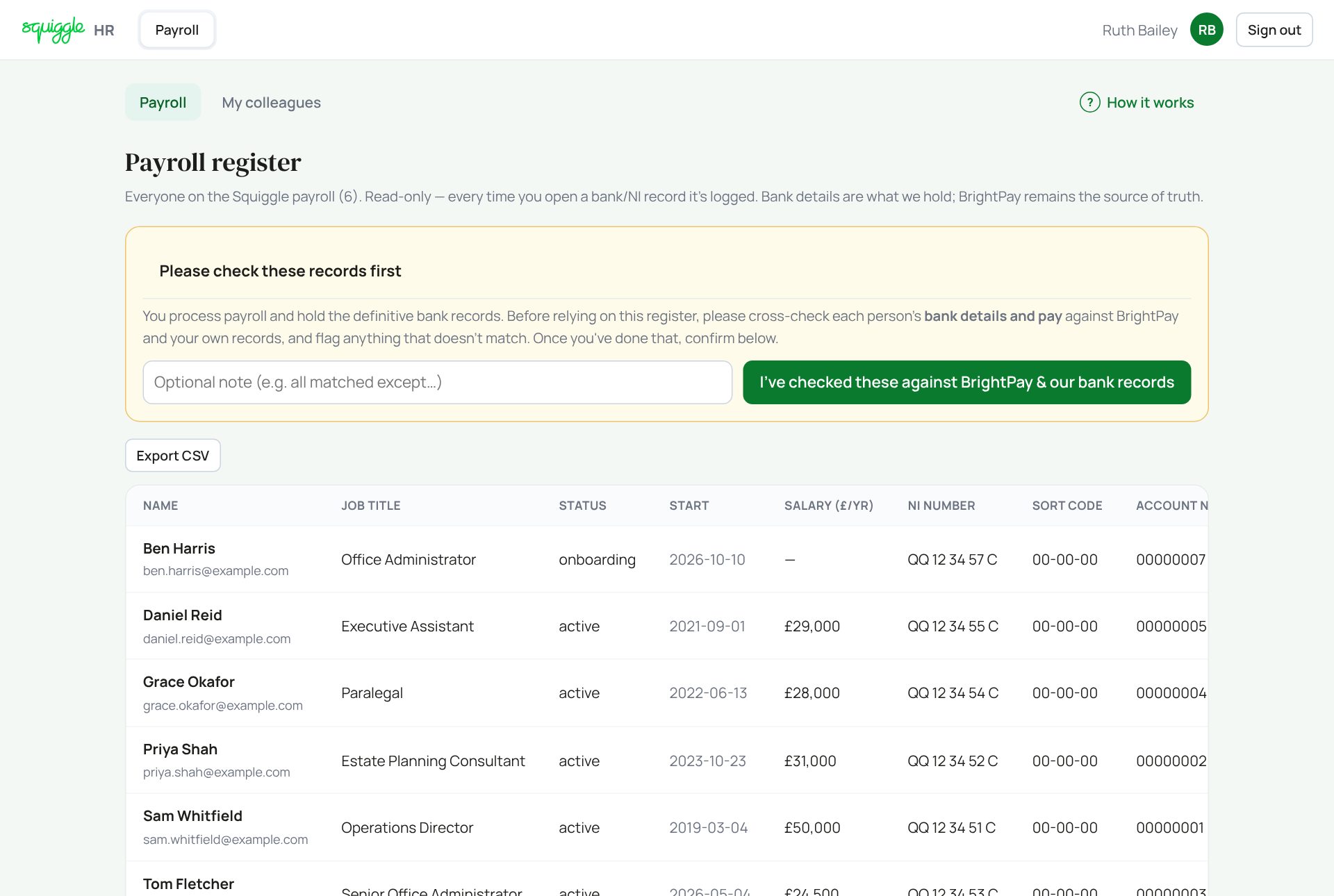
It lists everyone marked as needing a payroll record. You can read it but not change it. Every time it opens, each person’s bank and NI view is logged, and they can see that you looked.
The first time, a yellow box asks you to check the records against BrightPay and your bank records. Do that, add a note if anything did not match, then press I’ve checked these against BrightPay & our bank records. The box then goes for everyone.
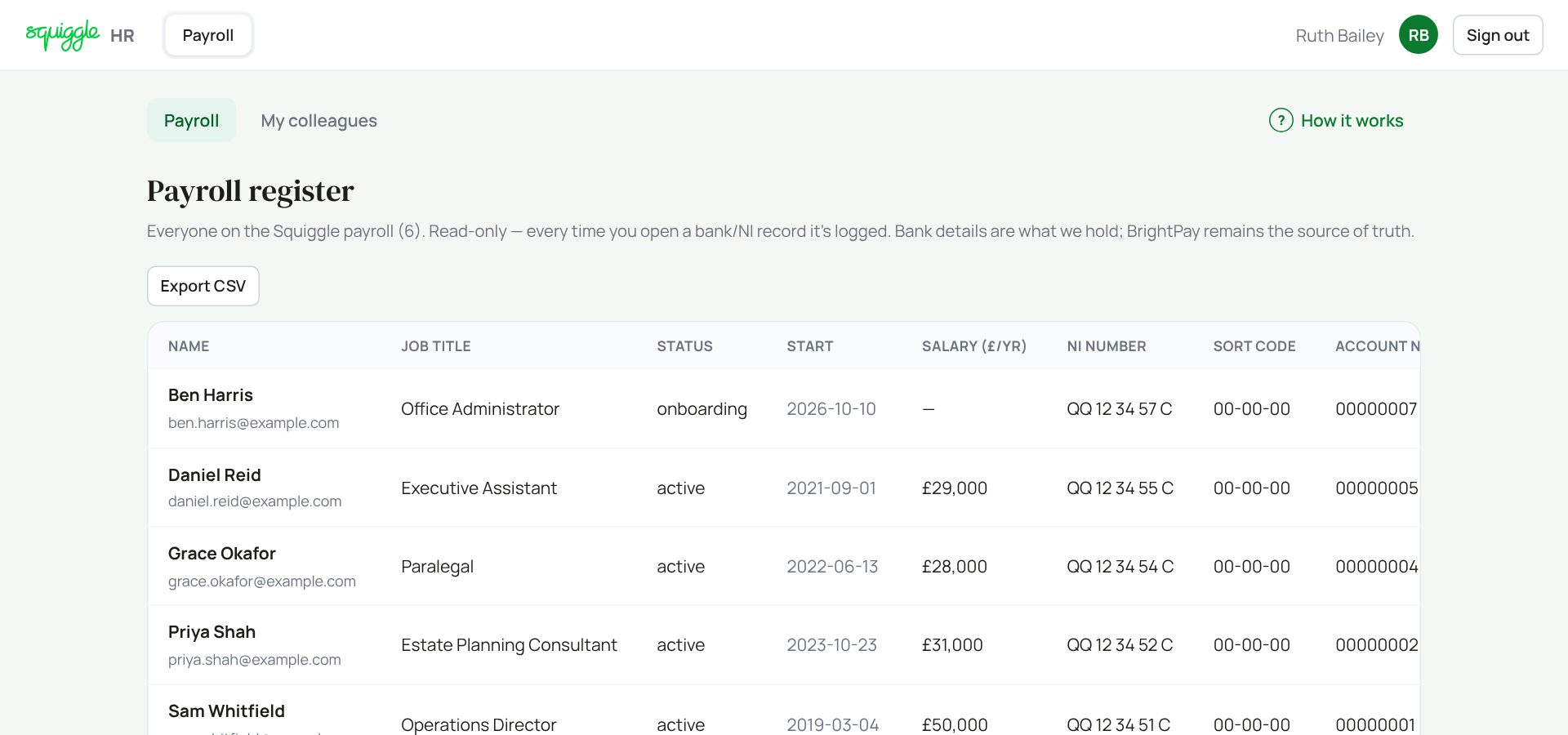
Export CSV downloads the register as a spreadsheet. It contains bank details: keep it safe and delete it when done.
BrightPay remains the source of truth. If something differs, tell the Squiggle HR lead rather than assuming this register is right.
Adding a colleague
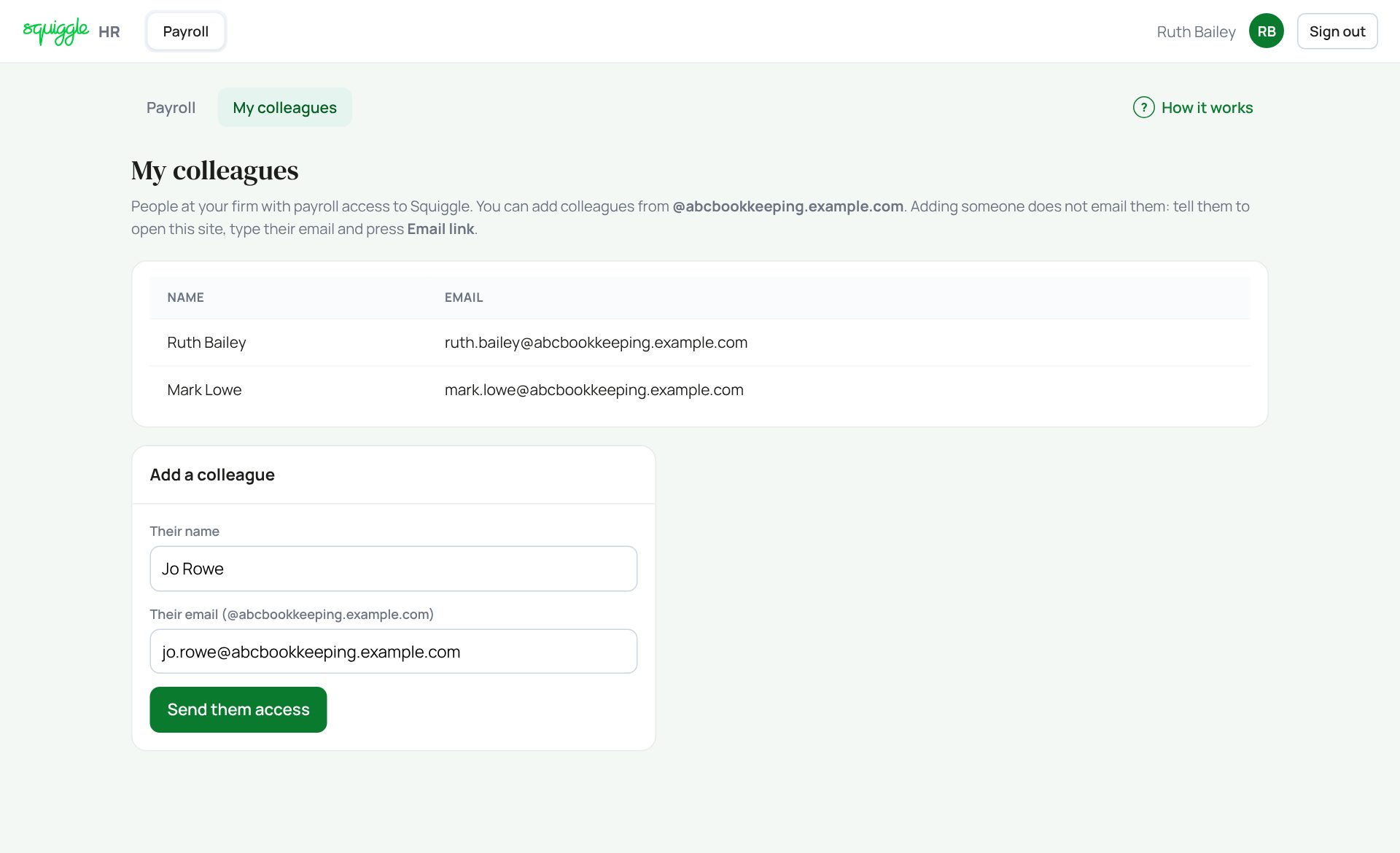
- Open My colleagues.
- Type their name and email. It must end with your own firm’s address.
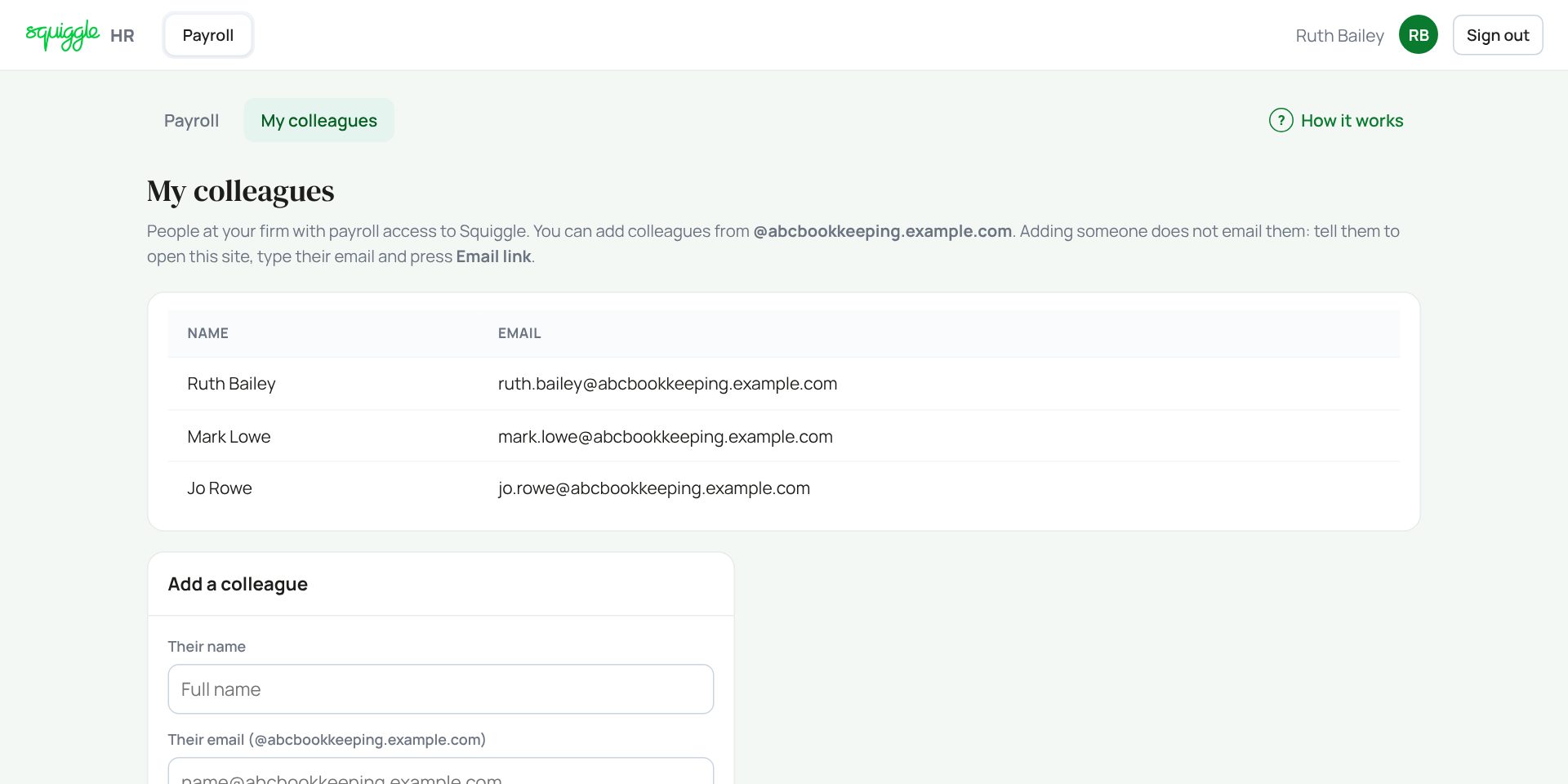
- Press Send them access. They appear in the list.
- Tell them to go to hr.squiggleconsult.co.uk, type their email and press Email link. Adding them does not send them anything.
If something goes wrong
- “You can only add colleagues from @…”: only people at your own firm can be added.
- Someone is missing from the register: ask the Squiggle HR lead to tick Needs a payroll record on their record.
- “Enter a valid email”: check for typing mistakes.
If the page says Something went wrong or a red Error: message appears, nothing has been saved. Reload the page and try once more. If it happens again, press Report a problem and copy the message into it.
Something here does not match what you see? Use the Report a problem button in the corner of the HR site and say which guide.