
My details and documents
Keep your contact, bank and emergency details up to date, and find your paperwork.
Everyone
Your details
Go to My HR and the My details tab.
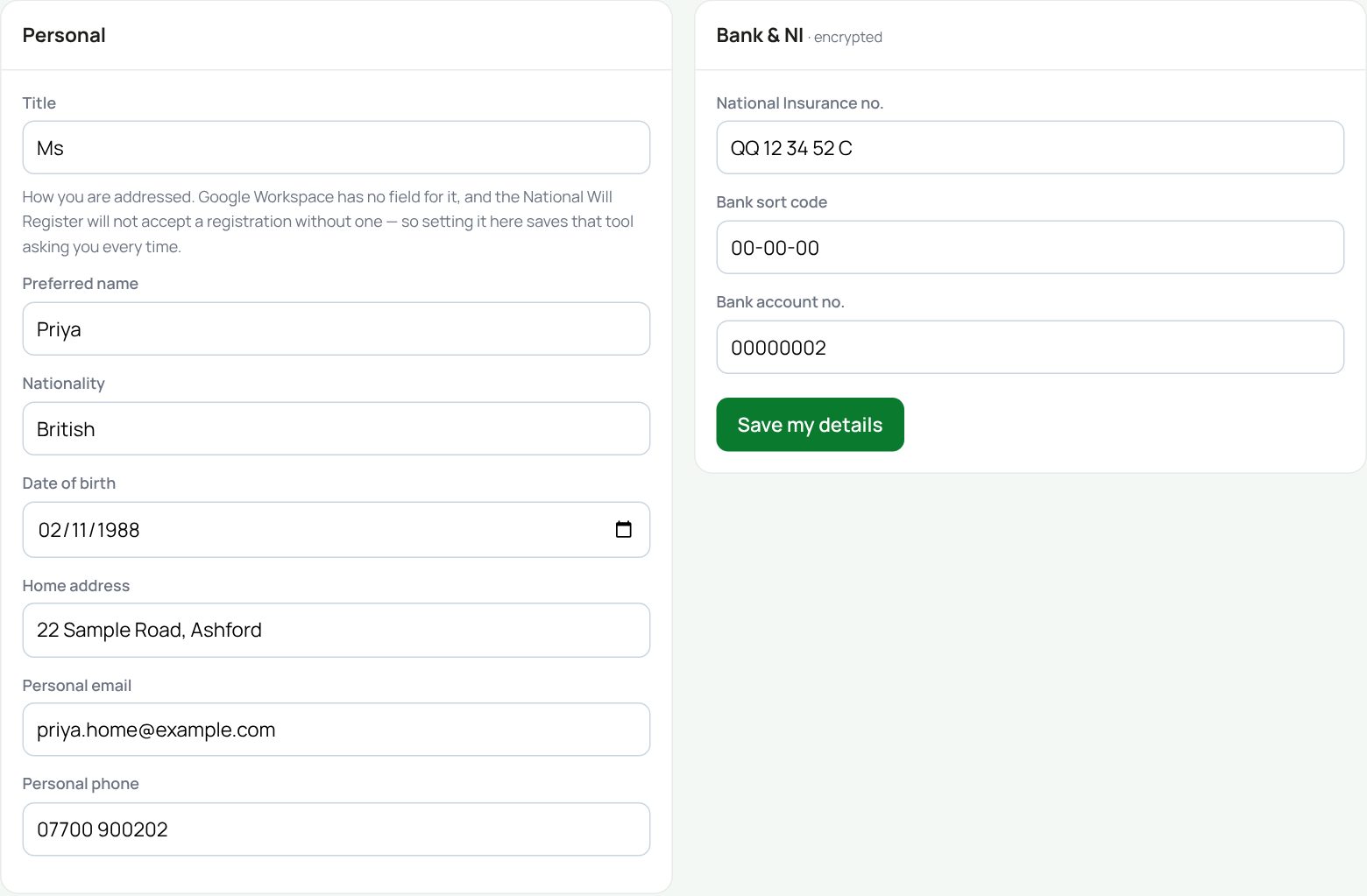
- Change anything that is out of date. Title is how we address you (Mr, Ms, Dr…).
- Press Save my details. It saves everything on the page, not just the bank box it sits in.
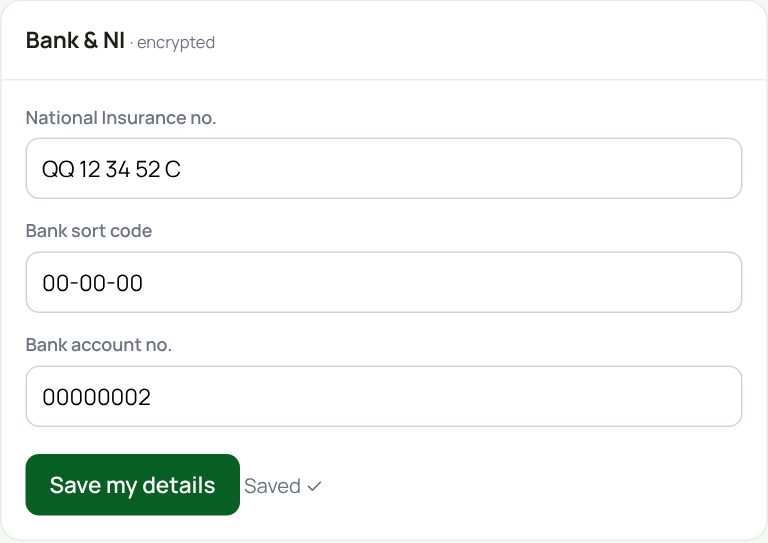
Your bank details and NI number are stored encrypted. Only you, the payroll bookkeeper and a superadmin can read them. Your full name and job title cannot be changed here: ask your manager.
Booking availability (consultants)
Consultants also see Booking availability. It tells our booking system (Signpost, behind meet.squiggleconsult.co.uk) what to send you:
- New enquiries from the shared rota: in, only in your own area, or out. Partners’ clients always reach you by name, whatever this says.
- Can travel to clients at home and Can meet clients by video.
- How far to travel for a home visit, in minutes of driving.
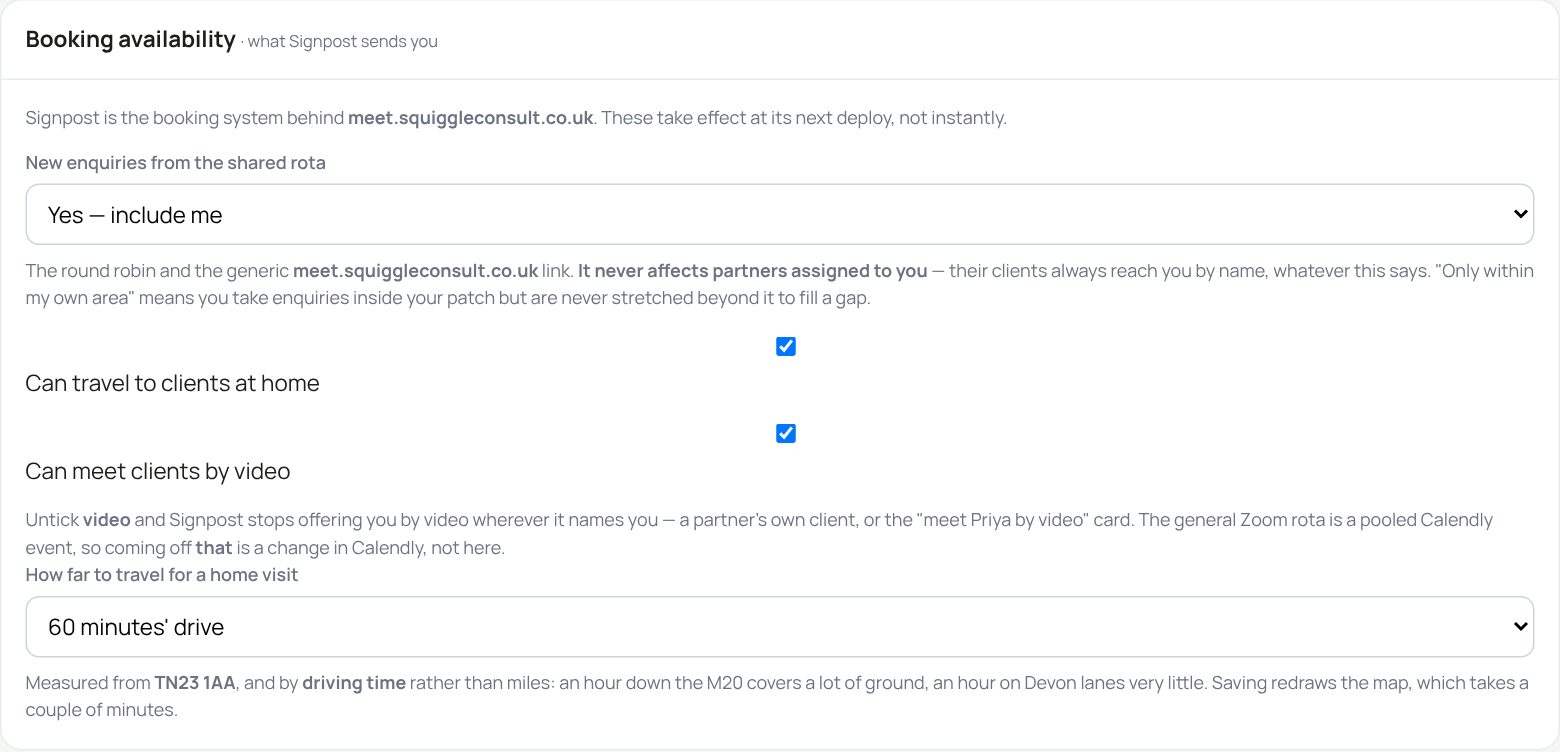
Changes are not instant. They take effect when Signpost next rebuilds, which saving asks for and which takes a couple of minutes. If it says your base postcode is not set, ask the office: until it is, no home visits can be sent to you.
Emergency contacts
Type a name, relationship and phone, then press Add contact. It is saved at once. Remove deletes a contact at once too, without asking.

Who has looked at your private details
At the bottom, Who has viewed my sensitive data lists the last 20 times someone opened your bank and personal details, and who it was. A view by our bookkeeper is marked (payroll).

My documents
The My documents tab holds your contract, ID and anything you have signed through the HR site.
- To read one, press Open. It opens in a new tab. The link works for five minutes.
- To add one, such as a passport scan or a certificate, choose its type, press Choose File, pick the file and press Upload.
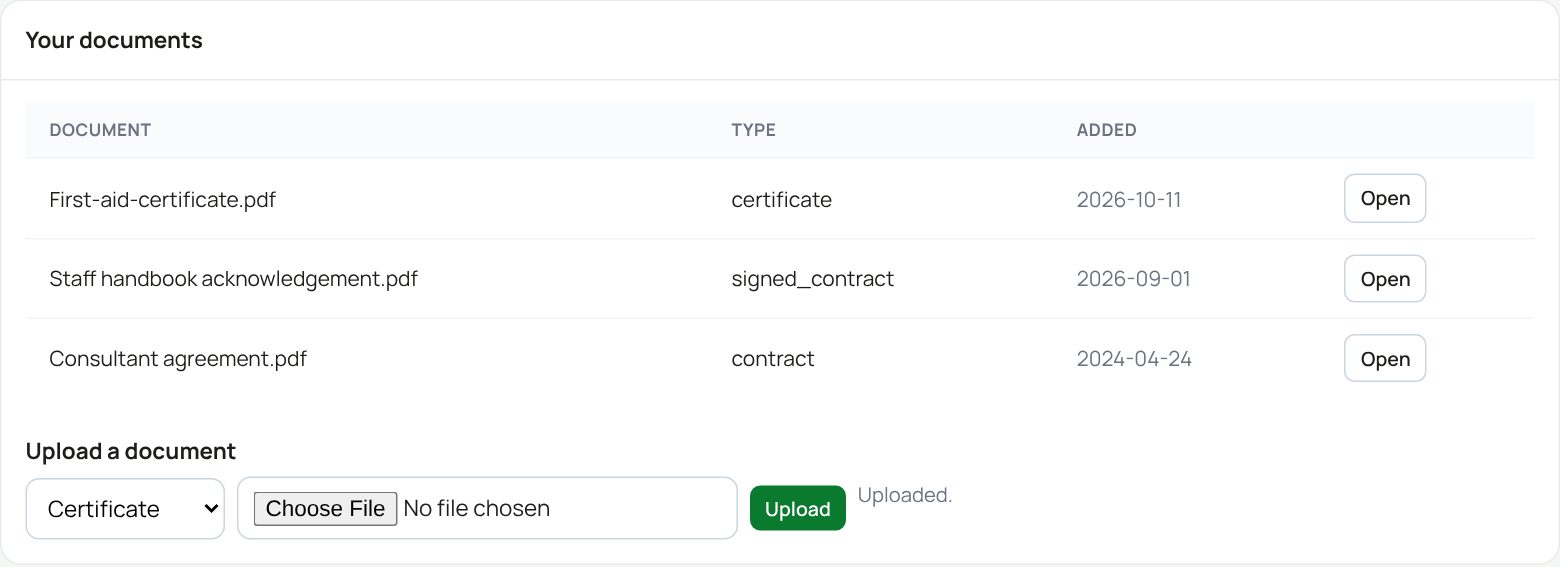
You cannot delete a document yourself. If you uploaded the wrong file, tell your manager or a superadmin.
Logins and connections: HM Land Registry
The Logins and connections tab under My HR holds your own HM Land Registry login. Team Hub's QC Station uses it when you press Get the register on a case. HM Land Registry do not allow a shared login, so every search and official copy goes out under your user ID.
- Type the user ID and password you sign in to the Business e-services portal with, then press Save and check. HM Land Registry are asked whether they accept it; checking costs nothing.
- If they say no, nothing is saved: check the login on the portal and try again. If they cannot be reached, it is saved as Not confirmed yet and your first register request confirms it.
- If you change your password on the portal, press Change password here too. If HM Land Registry refuse it on a real request, the tab says so and nothing more is ordered with it until you change it.
- Disconnect removes it. If an order is still waiting to be collected you are warned first: only your login can collect it.
Nobody else can see your password, not your manager and not a superadmin. A superadmin can disconnect the login of someone who has left, without seeing it. The tab also lists what was ordered with your login this month; the firm pays the fees.
The “Please check your details” page
Every 180 days you are asked to check your details before you can use the site. See The first time you sign in for the steps.
If something goes wrong
- “Saved — but Title was not stored” or “Booking availability was not saved”: the rest saved. Tell a superadmin, as part of the database needs updating.
- “Could not open document”: reload the page and press Open again.
- Upload says “Error”: check the file is under 15 MB.
If the page says Something went wrong or a red Error: message appears, nothing has been saved. Reload the page and try once more. If it happens again, press Report a problem and copy the message into it.
Something here does not match what you see? Use the Report a problem button in the corner of the HR site and say which guide.